BookStack is an open-source knowledge base with a “Shelves > Books > Pages” hierarchy, Markdown support, search, access permissions, and self-hosted installation.
There are different approaches to working with knowledge bases. Some people prefer simple storage like in Notion, while others can’t live without complex graphs. Another way to approach it is to think of it like books in a library.
For that approach, there’s BookStack — an open-source solution for creating and managing your own knowledge base, with search functionality, and the ability to build connections between data.
What You Need to Deploy It on Your Server
To get everything running, you’ll need an Ubuntu server. In this case, installation is almost fully automated. There are also scripts available for other Unix-based operating systems.
Other requirements include:
- PHP >= 8.2
- MySQL >= 8.0 or MariaDB >= 10.6
- Git Version Control
- Composer >= v2.2.0
- A PHP-compatible web server
The installation itself is done with a single command:
git clone https://source.bookstackapp.com/bookstack.git --branch release --single-branch bookstackIf you’re not ready to deploy your own copy of BookStack yet, you can try the demo version via the provided link.
How It Works
Although the name and section titles suggest working with books, in reality it’s a standard knowledge repository.
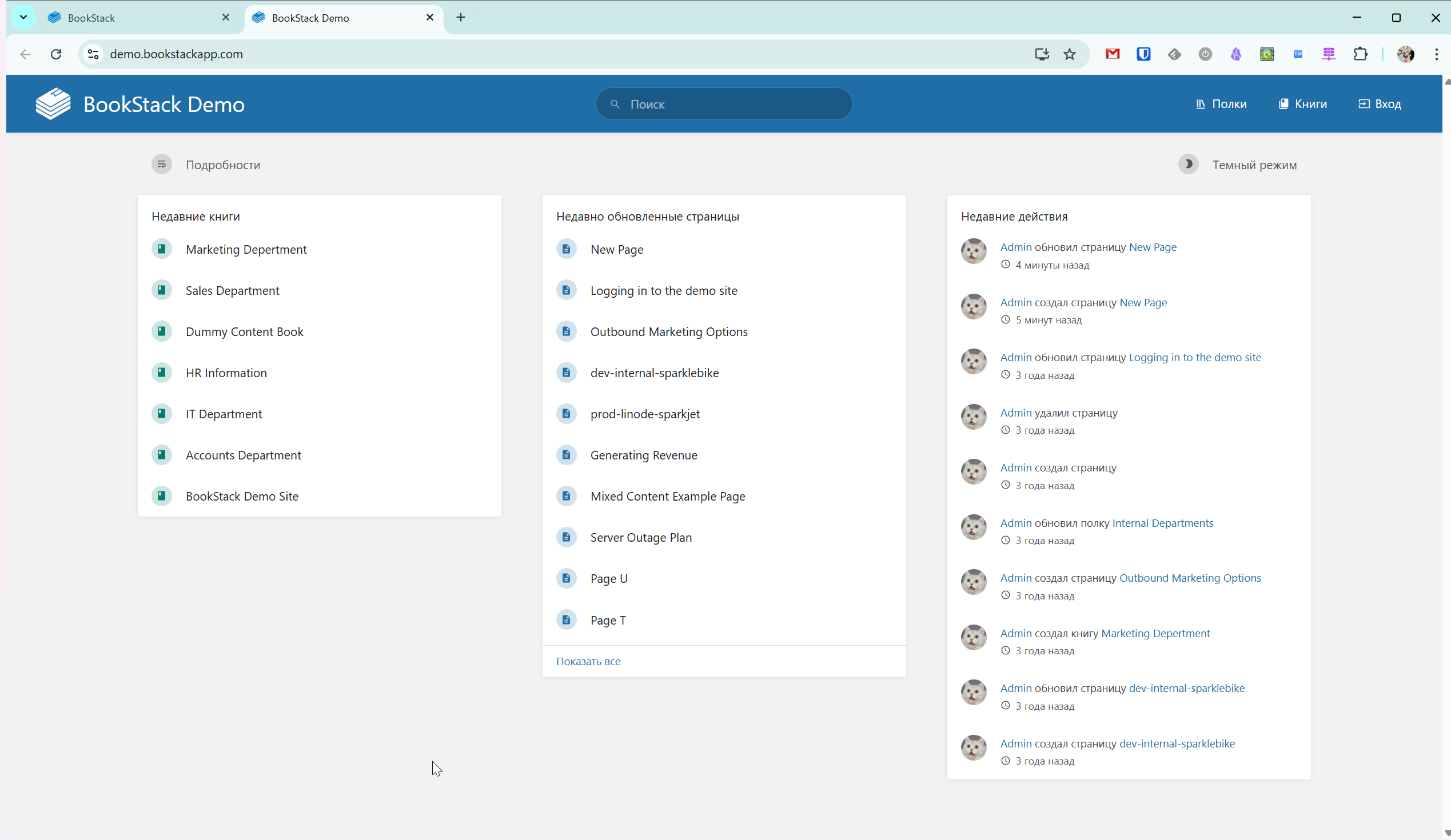
After logging in (if there is already some data), you’ll see three columns:
- Recent books
- Recently updated pages
- Recent user activity
The storage structure is as follows: Shelves > Books > Pages.
In other words, there is an overall project (Shelf), inside it are folders (Books), and inside those are notes (Pages).
This immediately reveals one of BookStack’s limitations: you cannot create nested folders with multiple levels. In other words, you can’t create a book inside another book. However, you can place multiple books on a shelf.
Features
When creating a Shelf, in addition to its name, you can assign various tags to connect related data. You can also set different access permissions for the Shelf and its contents if you’re working in a team.
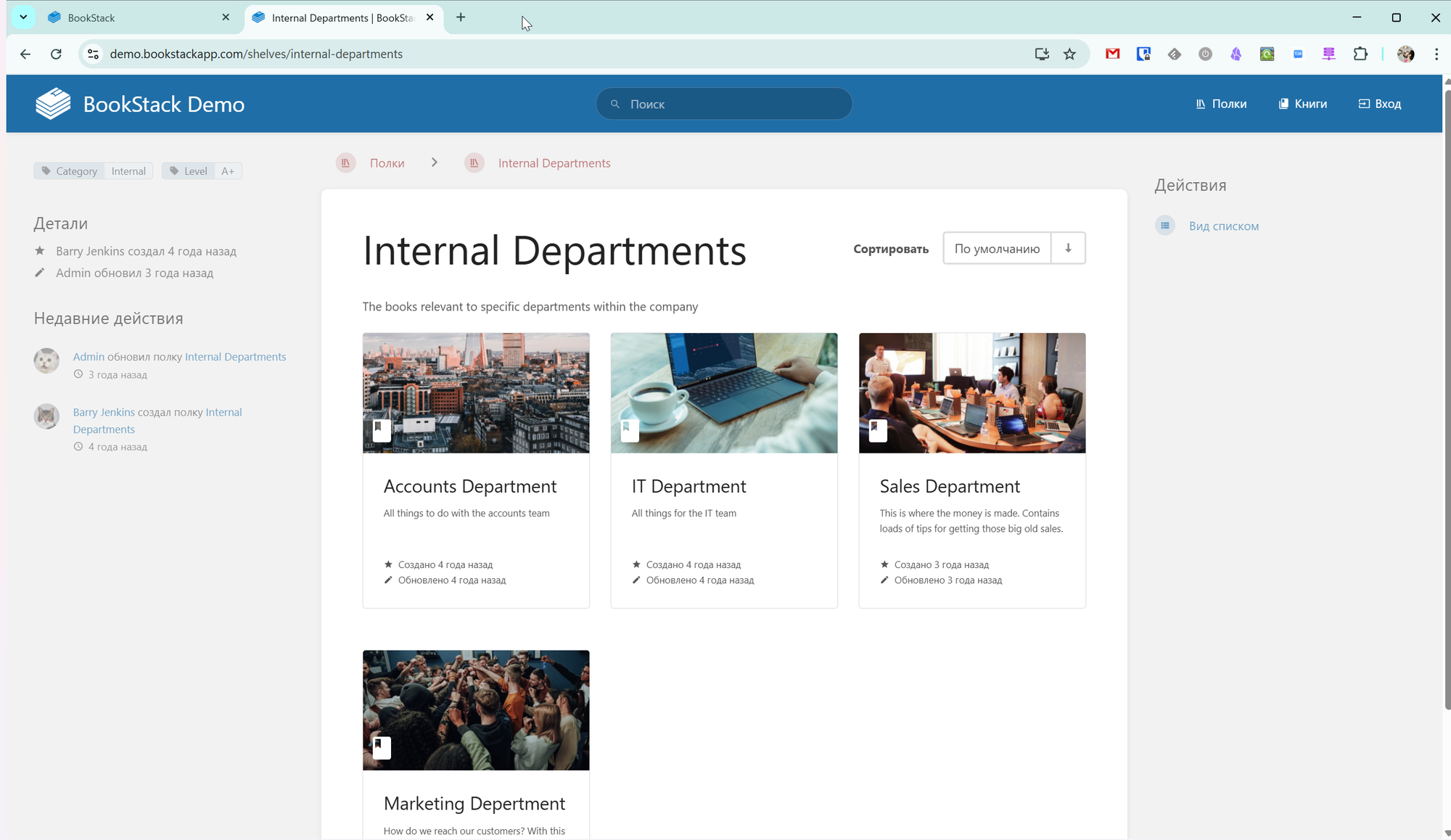
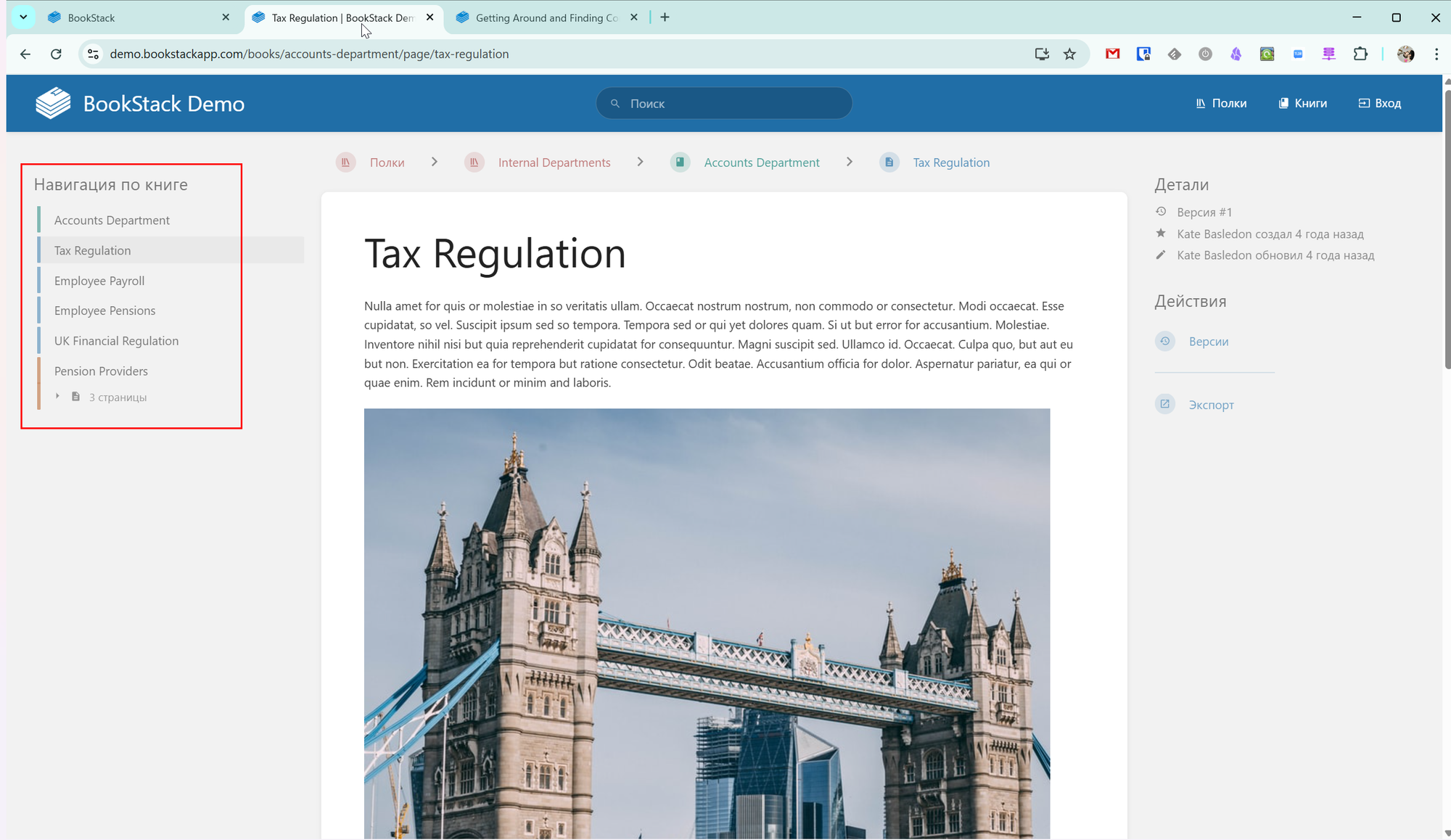
Next, you add Books to the Shelf, and each Book has its own Table of Contents. Note titles act as chapter titles.
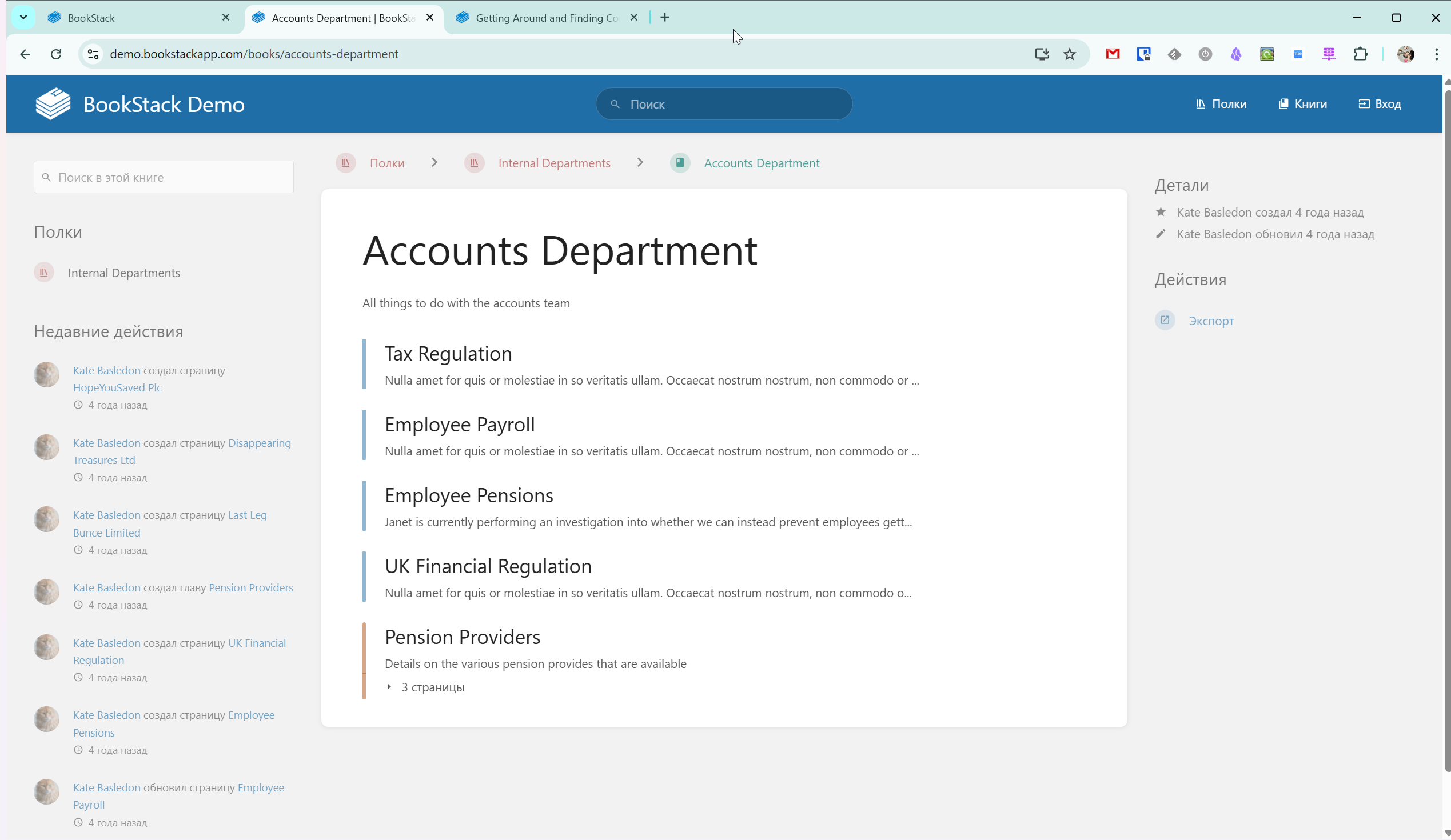
A chapter can contain either a single page or multiple pages, which is reflected in the Book Navigation panel.
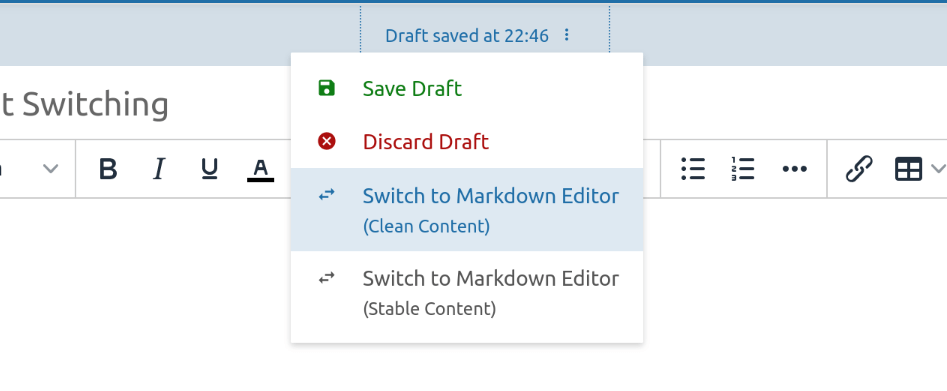
When editing a page, you have full Markdown support as well as the ability to add necessary attachments. If you’re not very familiar with Markdown, there is a standard text formatting toolbar available.
There are no restrictions on attachment size or file types — after all, all information is stored on your own server.
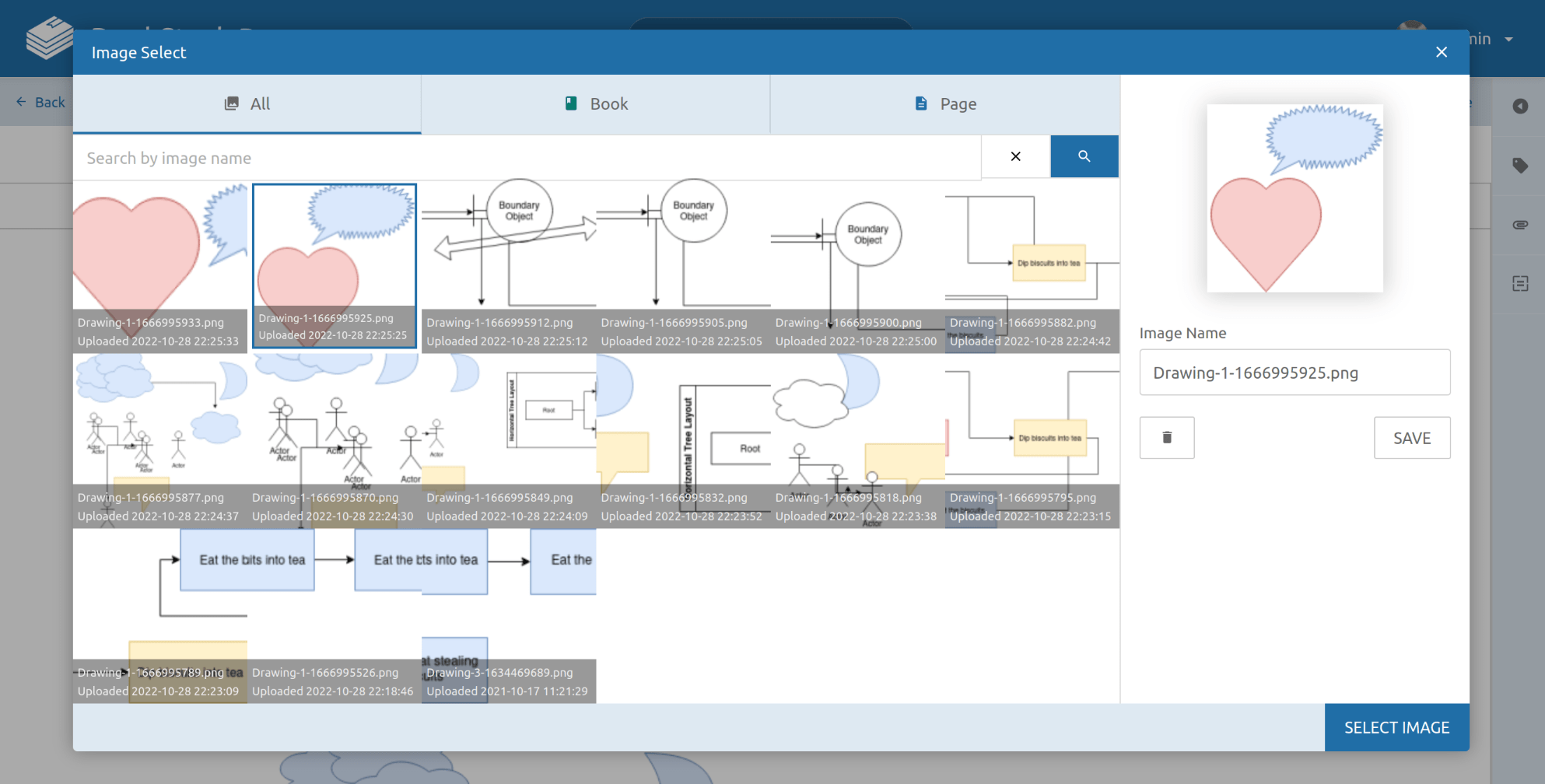
In addition, BookStack supports simple drawing and diagram creation based on diagrams.net.
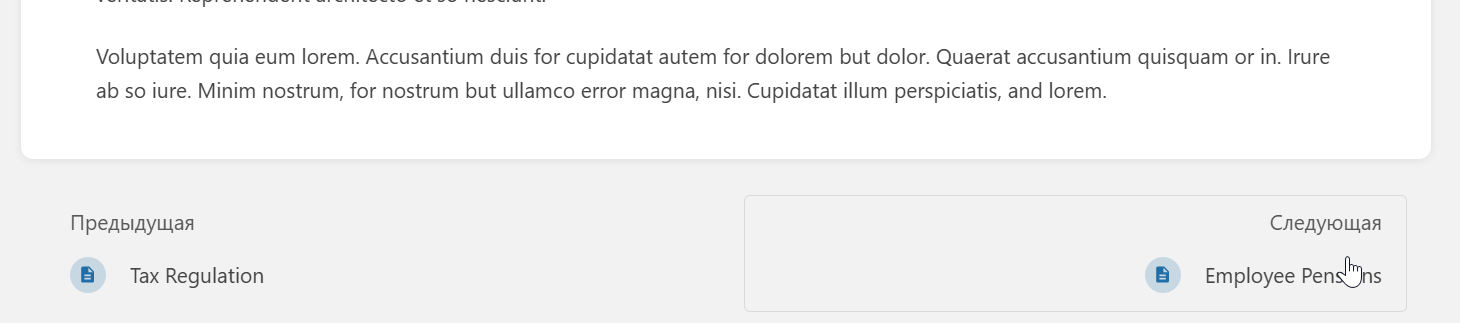
Just like reading a real book, a Book in BookStack has page navigation at the bottom for quick browsing.
At the top, you’ll see a menu showing the full hierarchy up to the current page for faster navigation. Clicking the arrow opens a search of available chapters and pages.
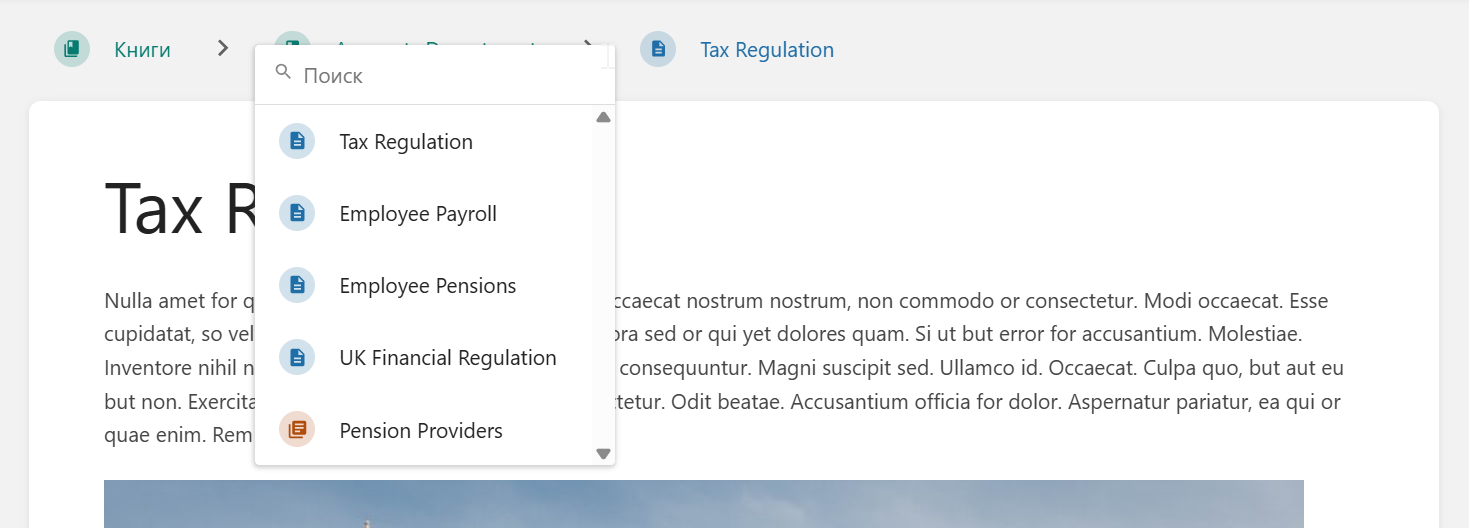
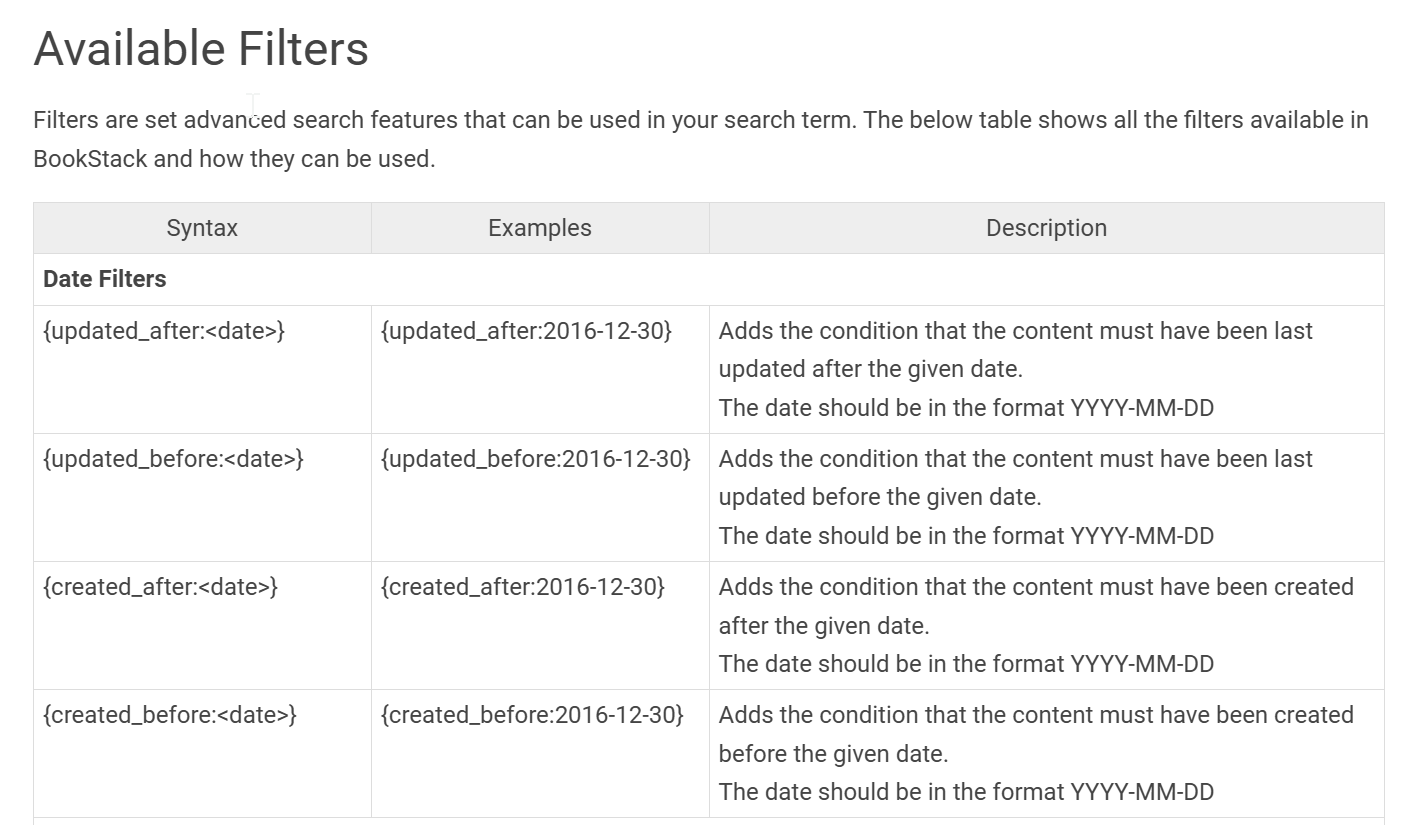
Of course, there is also a global search across all books and shelves, with syntax support and filters for more precise queries.
Books or pages can also be added to favorites for quick access from the corresponding menu.