
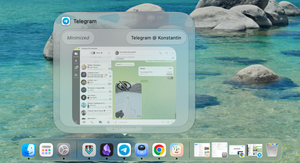
DockDoor enhances the macOS Dock by adding window previews on hover and with Cmd/Option+Tab, expanding window switching and offering flexible display settings.
After moving from Windows to macOS, I realized I was missing some features. I managed to add them by installing several different apps. But recently I came across an app that solves multiple tasks at once.
DockDoor upgrades the Dock experience by adding several useful features.
Window previews on hover
In the app settings, you can enable previews when hovering over an app icon in the Dock.
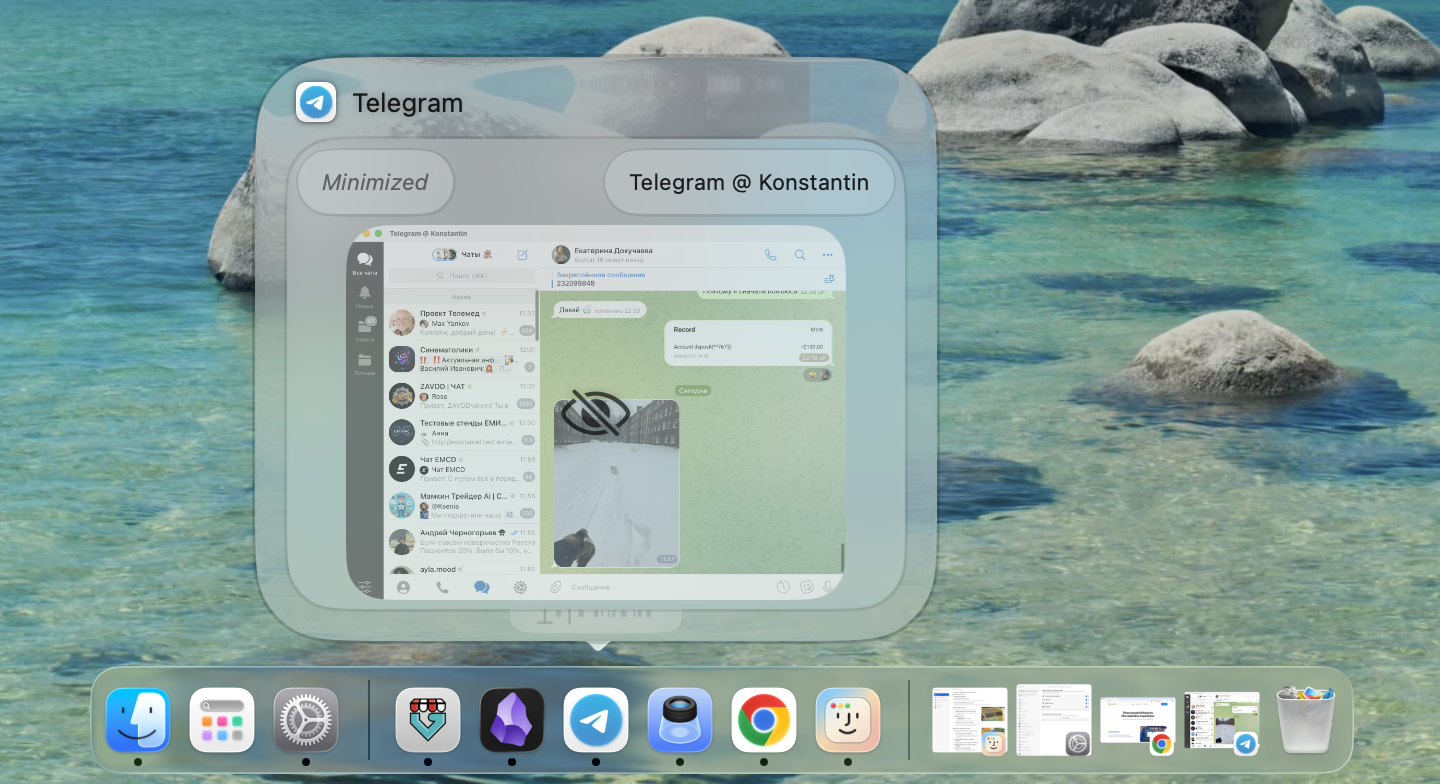
This feature is also customizable:
- Show windows only from the current Space
- Change window sorting
- Keep previews visible even after the app is closed
Window previews with Option+Tab
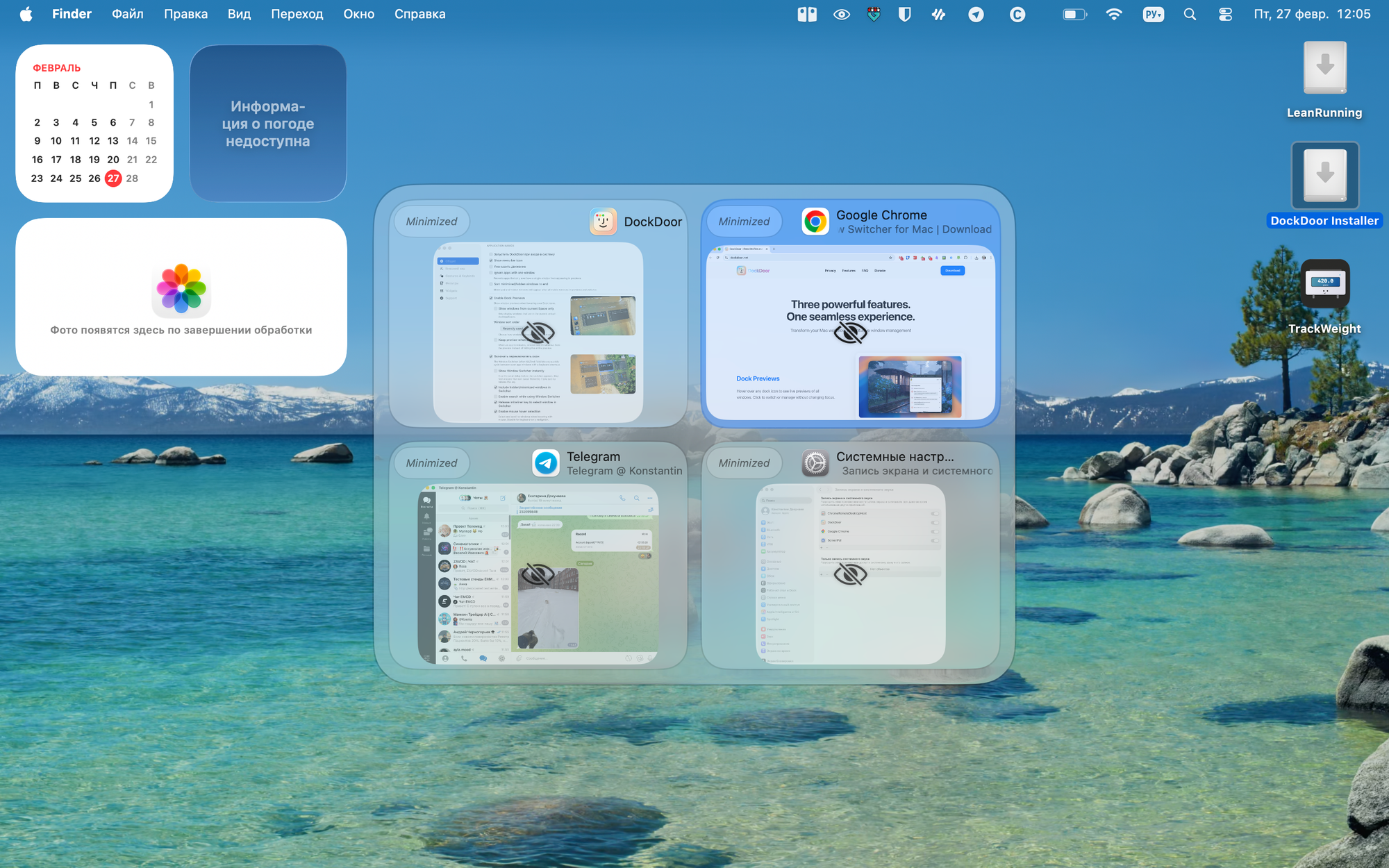
If you press this key combination, instead of the standard window switcher you’ll see previews of all open apps and can quickly switch to the one you need.
Just like before, the behavior is fully customizable:
- Include or exclude hidden and minimized windows
- Add search
- Switch to a window when releasing Option+Tab
- Enable mouse selection
- Change window sorting
Window previews with the regular Cmd+Tab
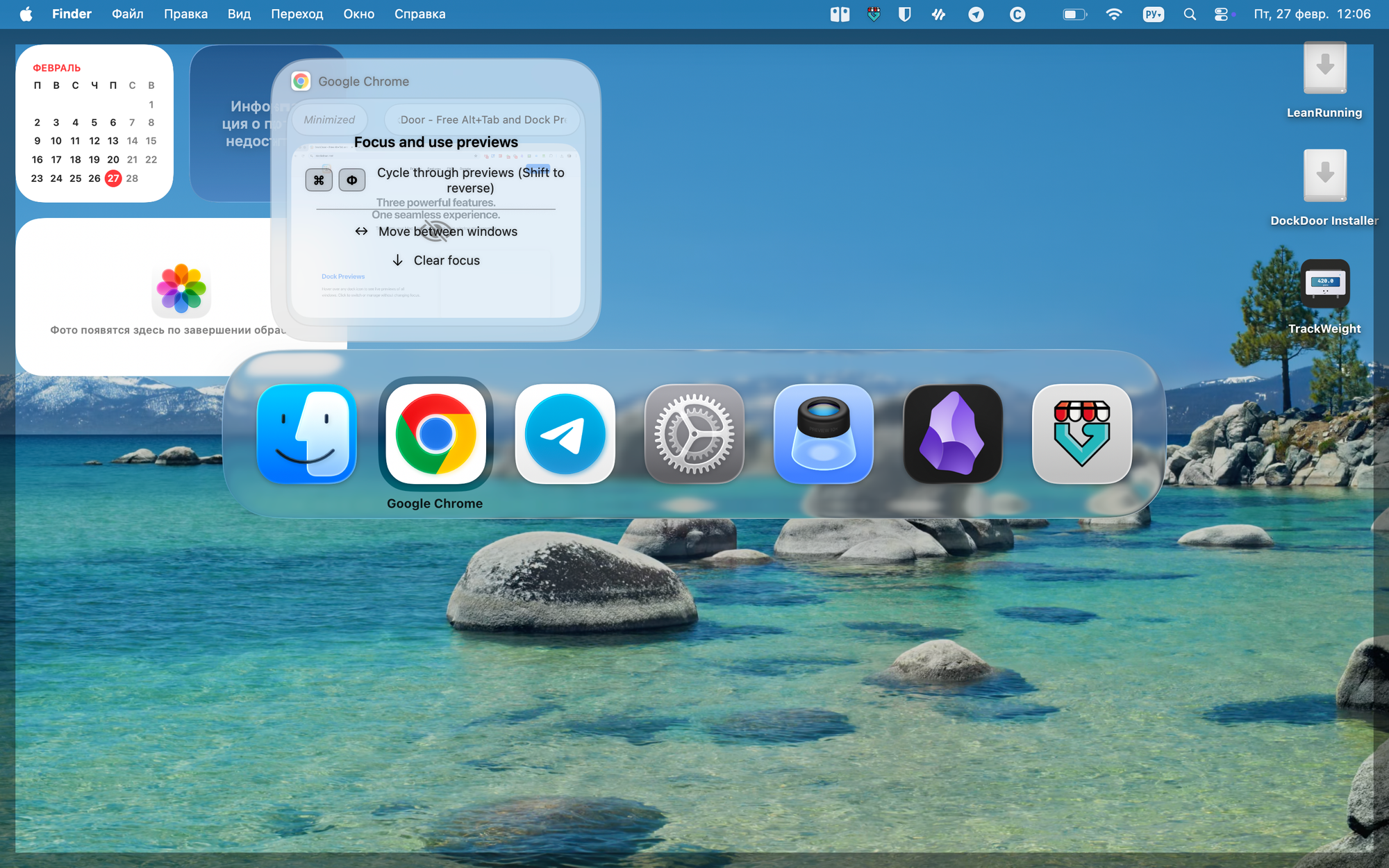
You can also add previews to the standard app switcher. This mode has fewer settings:
- Show apps only from the current Space
- Window sorting
Customizing the Dock appearance
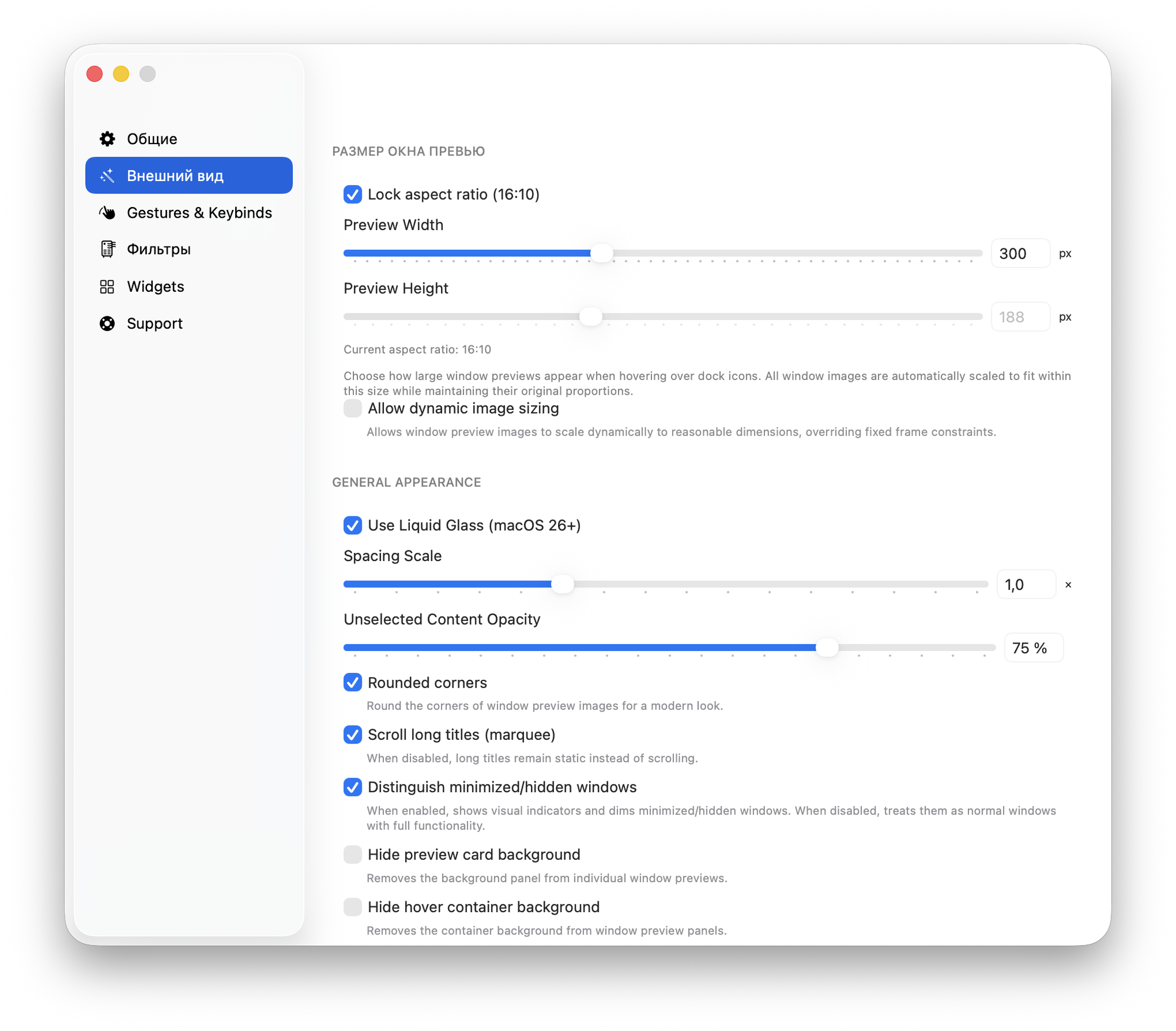
DockDoor also includes many additional settings to improve the overall look of window switching and the Dock. I recommend exploring the settings to see what else might be useful.
For example, you can change the preview position, adjust its size, set spacing between windows, and much more.