
Godspeed is a fast task manager focused on keyboard use: powerful, but hard to master and nearly useless without knowing its shortcuts.
When managing a to-do list, everyone decides for themselves what matters most in such apps. Many task managers have a unique feature to attract users. Today, I’ll talk about an app designed for максимально fast interaction.
Godspeed is a task manager for macOS, iOS, and the web, whose developers claim that no interaction will take more than 50 ms—even when using the keyboard.
How it works
The app promises maximum speed, but the first launch required some effort to get used to it.
First, there’s a mandatory onboarding, which already takes some time. Honestly, I recommend going through it. Why?
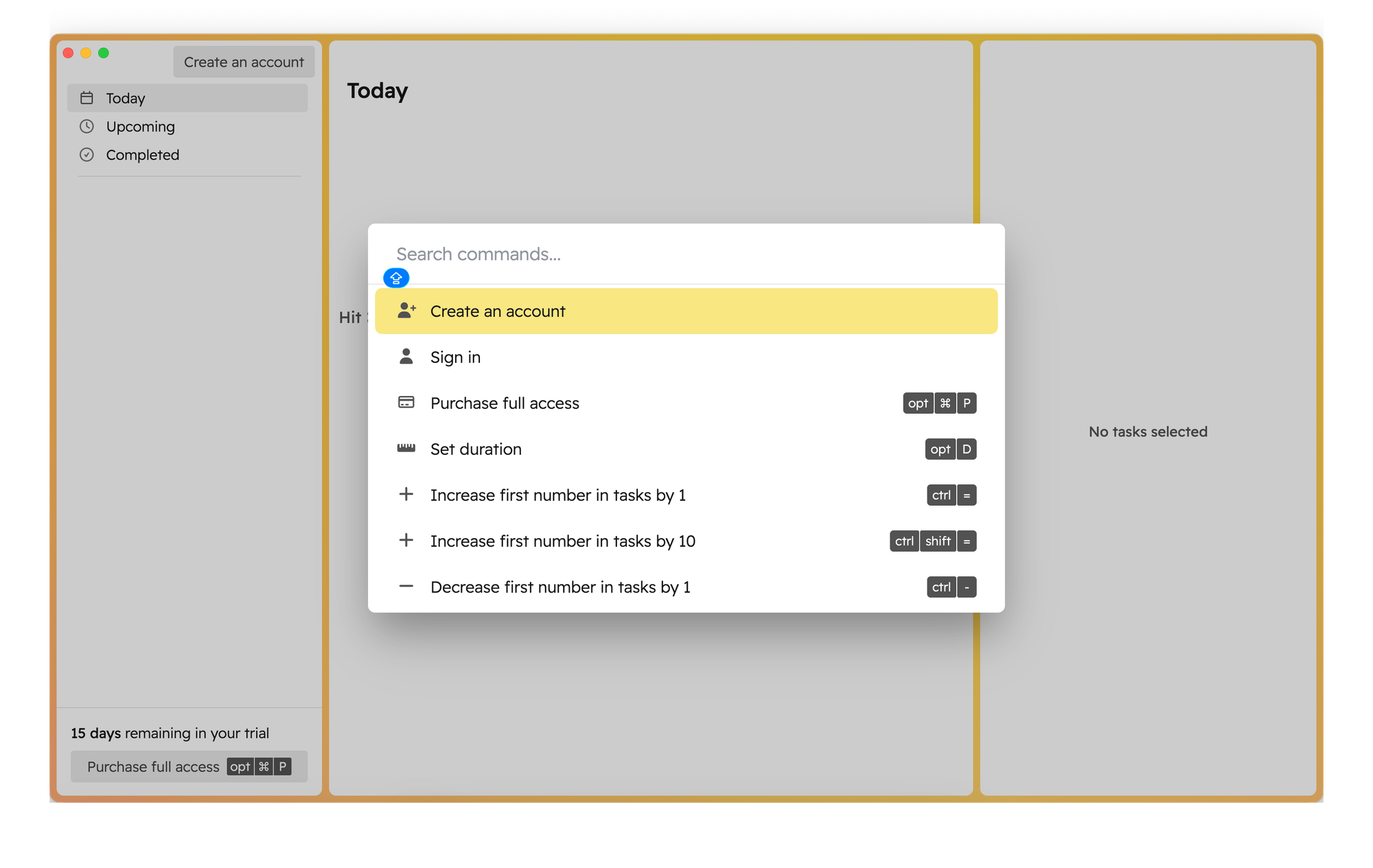
Because 99% of actions in Godspeed are performed using the keyboard. And there are situations where information about the required shortcut is missing. In many cases, you simply can’t perform actions with a mouse.
The app itself, as a task list, is very simple. You have three panels:
- Task list navigation
- Task or list view
- Additional task details
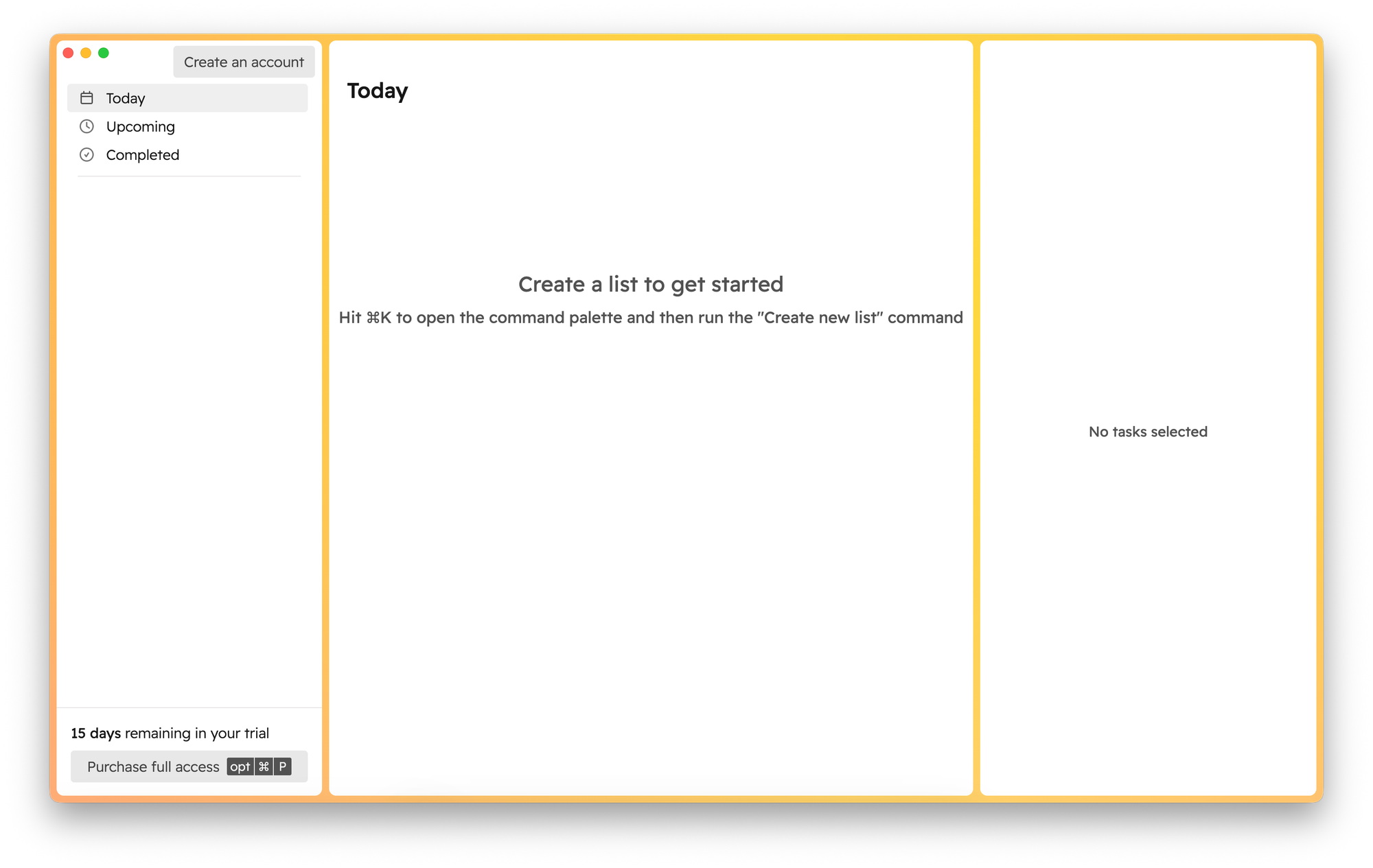
How tasks and lists are organized
You can’t create nested lists, but you can add tasks inside other tasks. You can also organize lists into folders.
If you’re using Godspeed for the first time, you’ll need to create your first list. To do this, press the соответствующую shortcut and choose Create new list.
After that, using another keyboard shortcut, you can create tasks within the list and add various details to them.
The app supports natural language input for setting deadlines and more—but only in English. You can add various types of additional content to a task:
- Due date
- Snooze
- Recurrence
- Duration
- Tags
- Attachments
- Notes
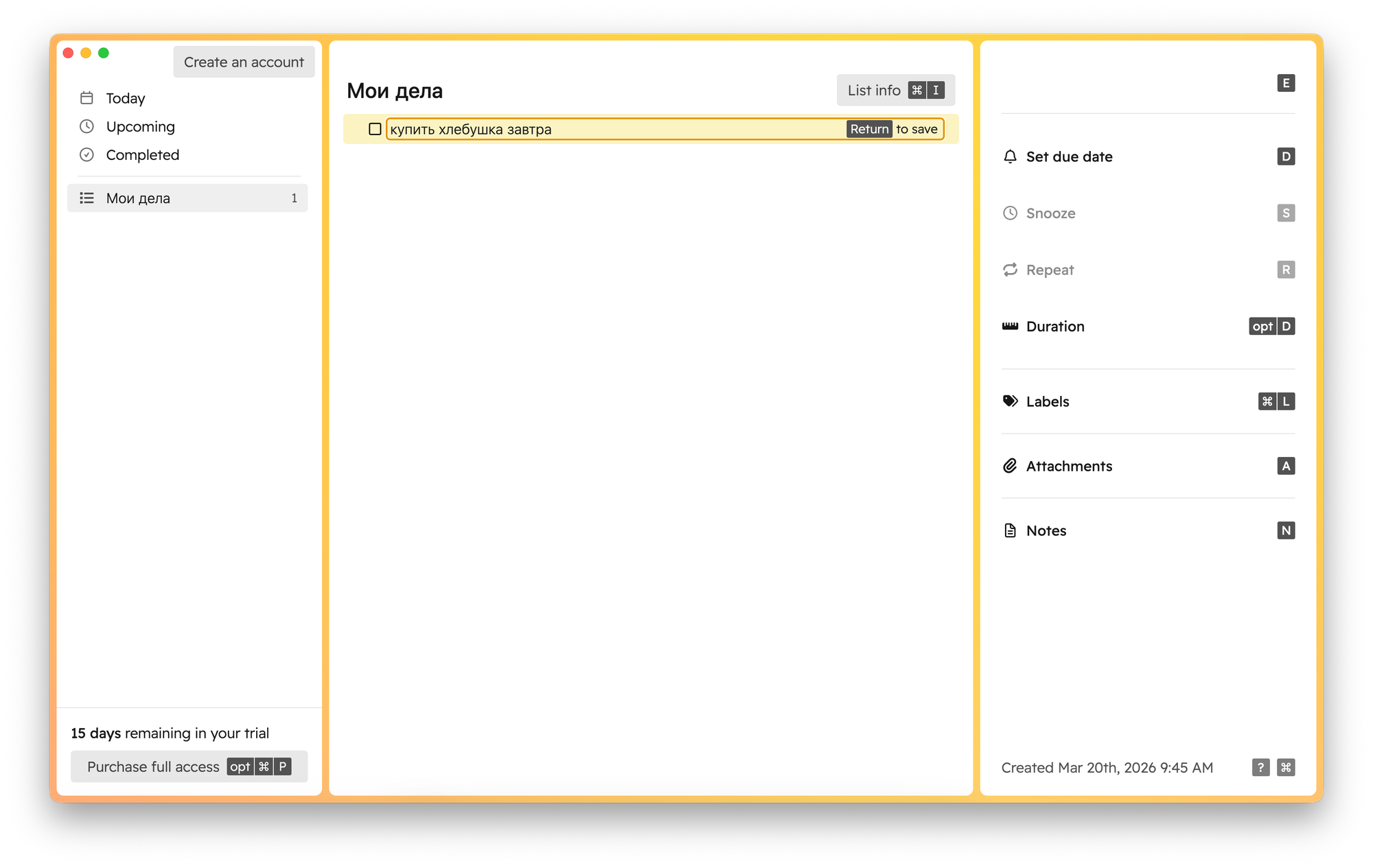
From my perspective, a few things stand out. Recurrence options are quite flexible, but there are some limitations. For example, you can’t set a task to repeat only on weekdays. Still, overall functionality is pretty flexible.
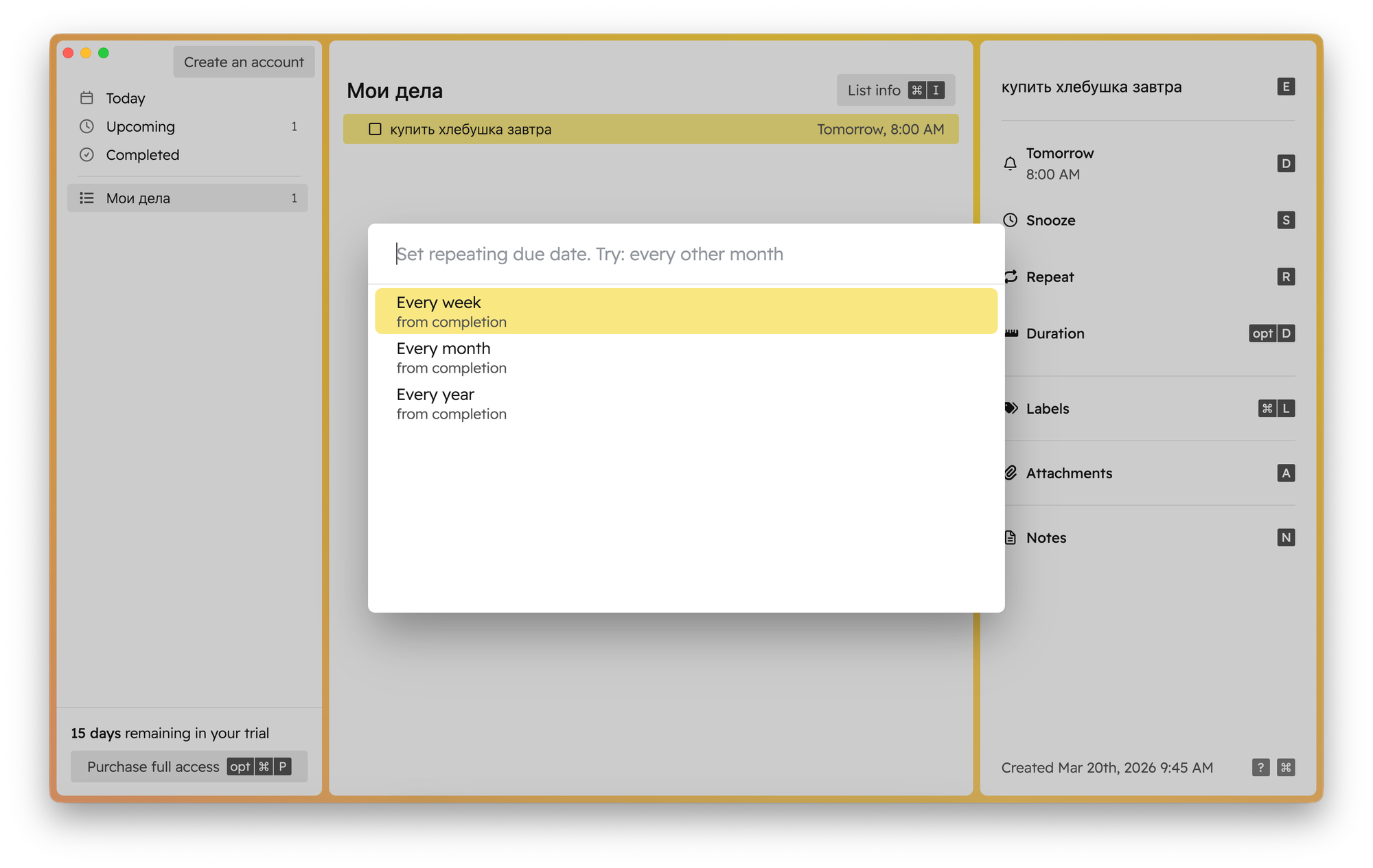
Notes support full formatting, but you’ll need to either use a dedicated menu (via shortcuts) or Markdown.
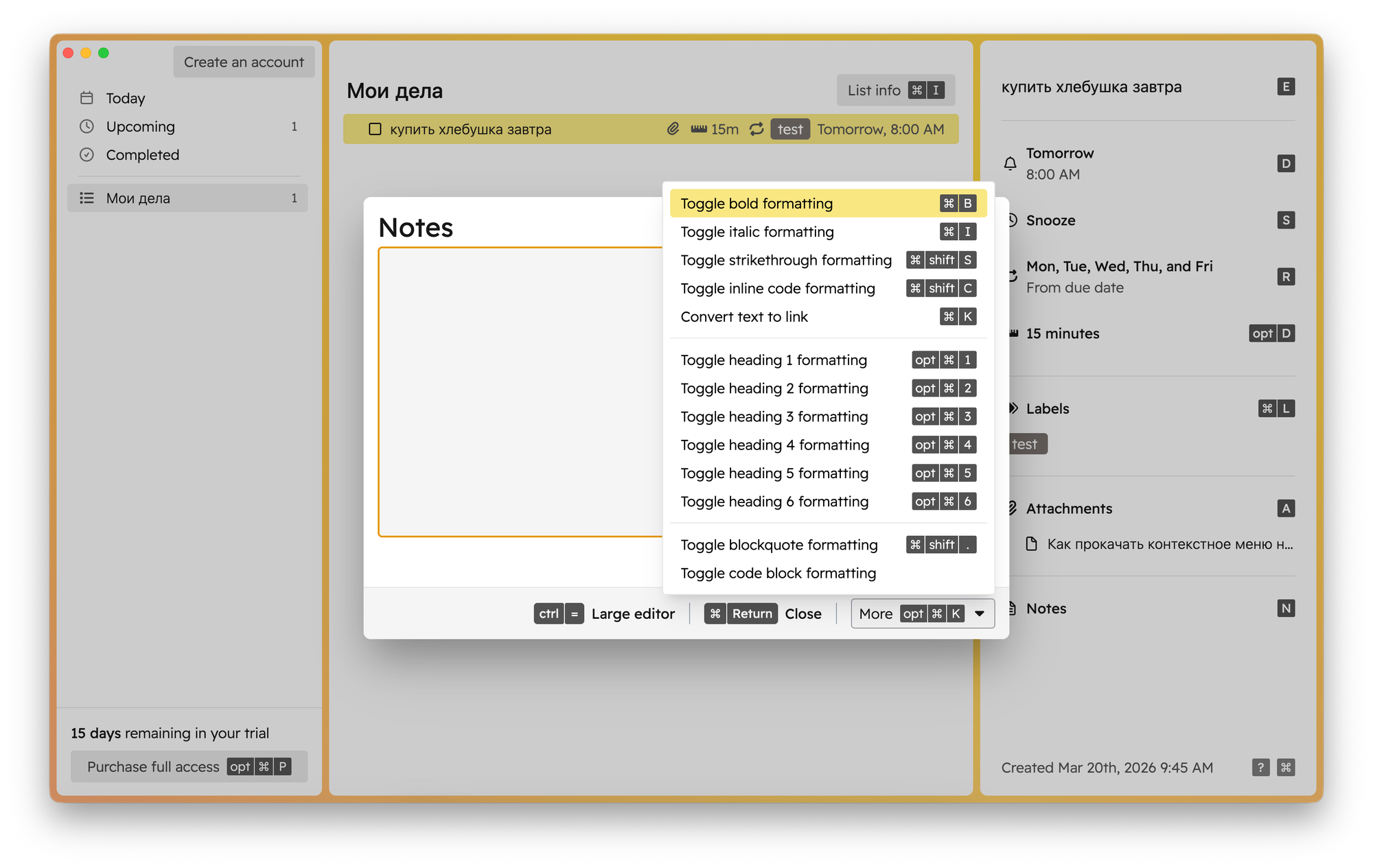
You can’t add attachments directly to notes, but you can attach files to tasks. I didn’t notice any limitations on attachments.
Additional features
You can share task lists with other Godspeed users or generate a public link. You can also add standalone notes to lists, separate from task-specific notes.
Pricing
A two-week free trial is available with no limitations. After that, the subscription costs $6 per month or $48 per year.
Conclusion
As a task manager, Godspeed is, on one hand, quite a comprehensive tool with many features—lists, subtasks, deadlines, and more.
At the same time, it feels somewhat limited compared to apps like Todoist, even though their capabilities are similar.
This is likely because everything in Godspeed revolves around keyboard use, which results in almost no menus.
This may discourage users who rely on a mouse. Using the app without knowing all the shortcuts is nearly impossible, and hints are often missing. Even the menu bar contains almost nothing.
There’s also a hardcore mode where 100% of actions are performed via keyboard. Honestly, it’s unclear how it differs from the standard mode.
So if you’re not ready to give up using a mouse, Godspeed is probably not for you. But if you love working with a keyboard, it’s definitely worth trying.