
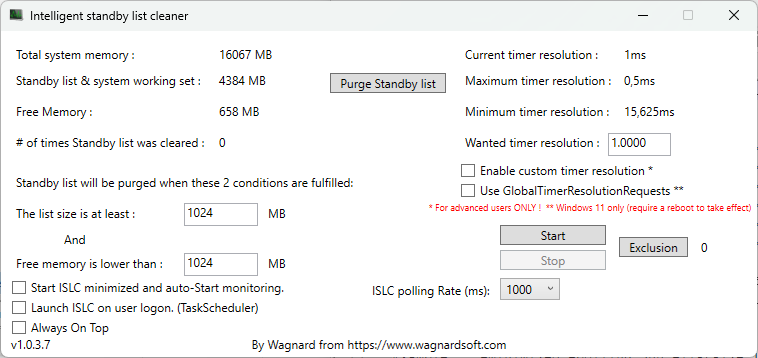
Windows may not always clear RAM cache properly. The ISLC utility shows memory usage and a timer, and allows you to clear the standby list manually or automatically based on rules.
Windows keeps part of the cache in RAM to speed up access. However, sometimes the cache isn’t cleared after an application is closed, and memory gradually fills up. In this case, you can clear it manually.
You can simplify this task with the free utility Intelligent Standby List Cleaner (ISLC). After installation, you’ll see a single window with all the necessary tools.
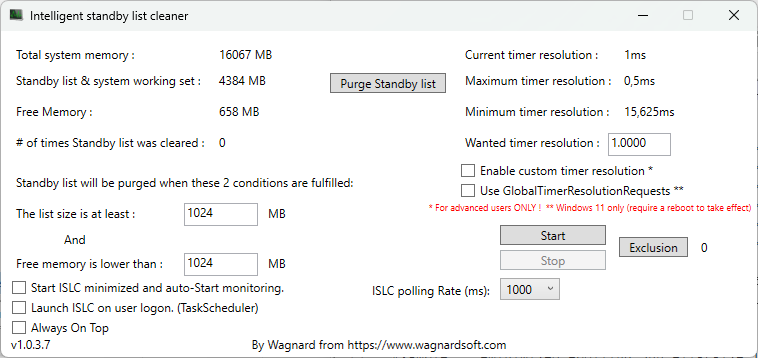
In the top-left corner, you can see the total system memory. Below that, there’s information about how much memory is used by the cache and system processes (Standby list & system working set), as well as the amount of free memory.
In the top-right corner, the current system timer value is displayed along with its maximum and minimum resolution. You can change it if needed.
The remaining buttons are used to manage standby memory:
- Purge Standby list — immediately clears memory
- Start/Stop — starts or stops monitoring and automatic cleaning
- Exclusion — a list of cleaning exceptions
You can set cleanup rules using the conditions “The list size is at least (MB)” and “Free memory is lower than (MB)”. This means the standby list must reach a specified size and the available free memory must drop below the chosen threshold before cleanup is triggered.