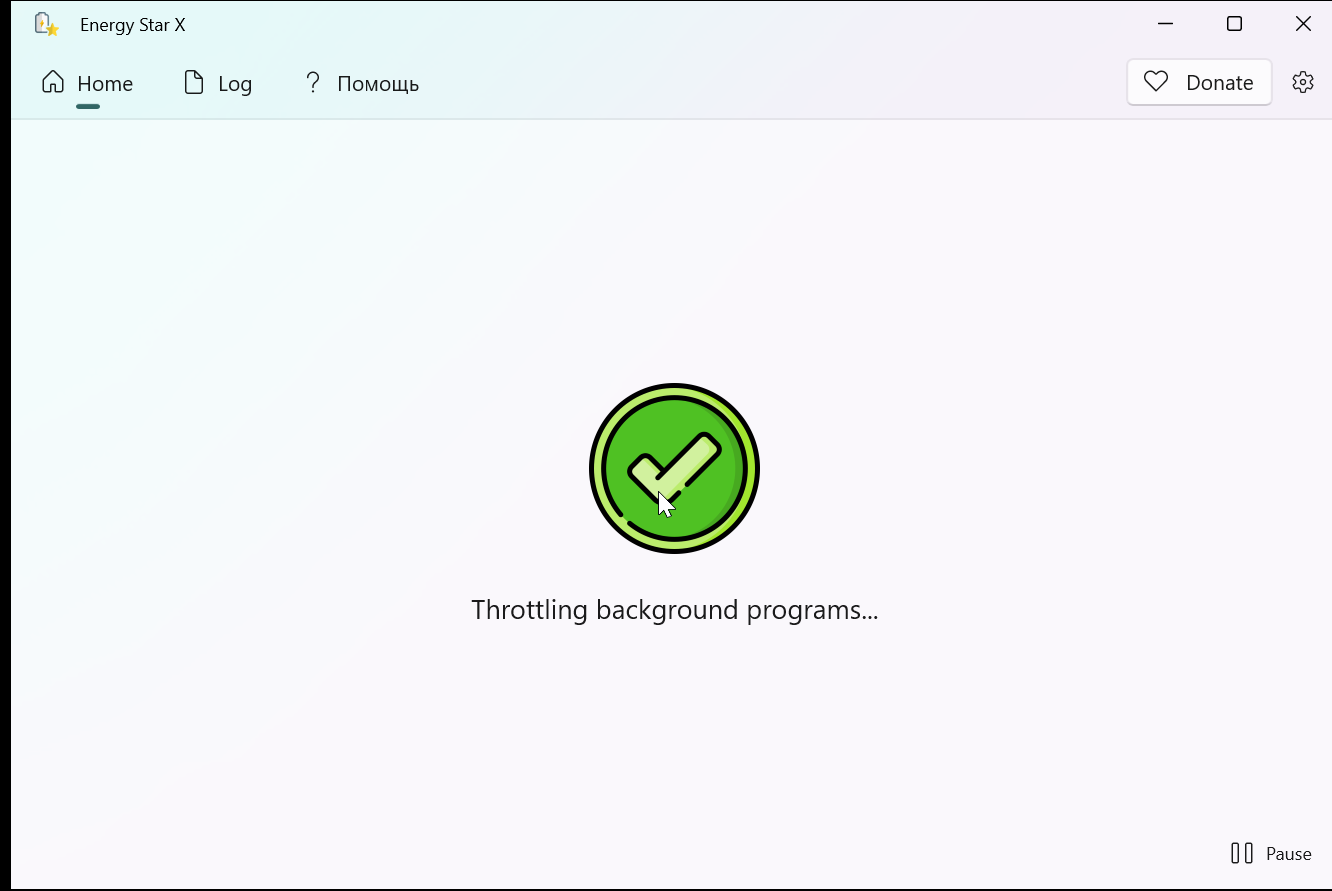
Energy Star X automatically enables Efficiency Mode in Windows 11 for unused applications, reducing system load and power consumption.
Windows 11 includes a special power-saving feature for applications called Efficiency Mode. When it is active, apps begin using fewer CPU resources, which helps save energy and extend your computer’s battery life.
When the mode is enabled, supported applications display a special icon.
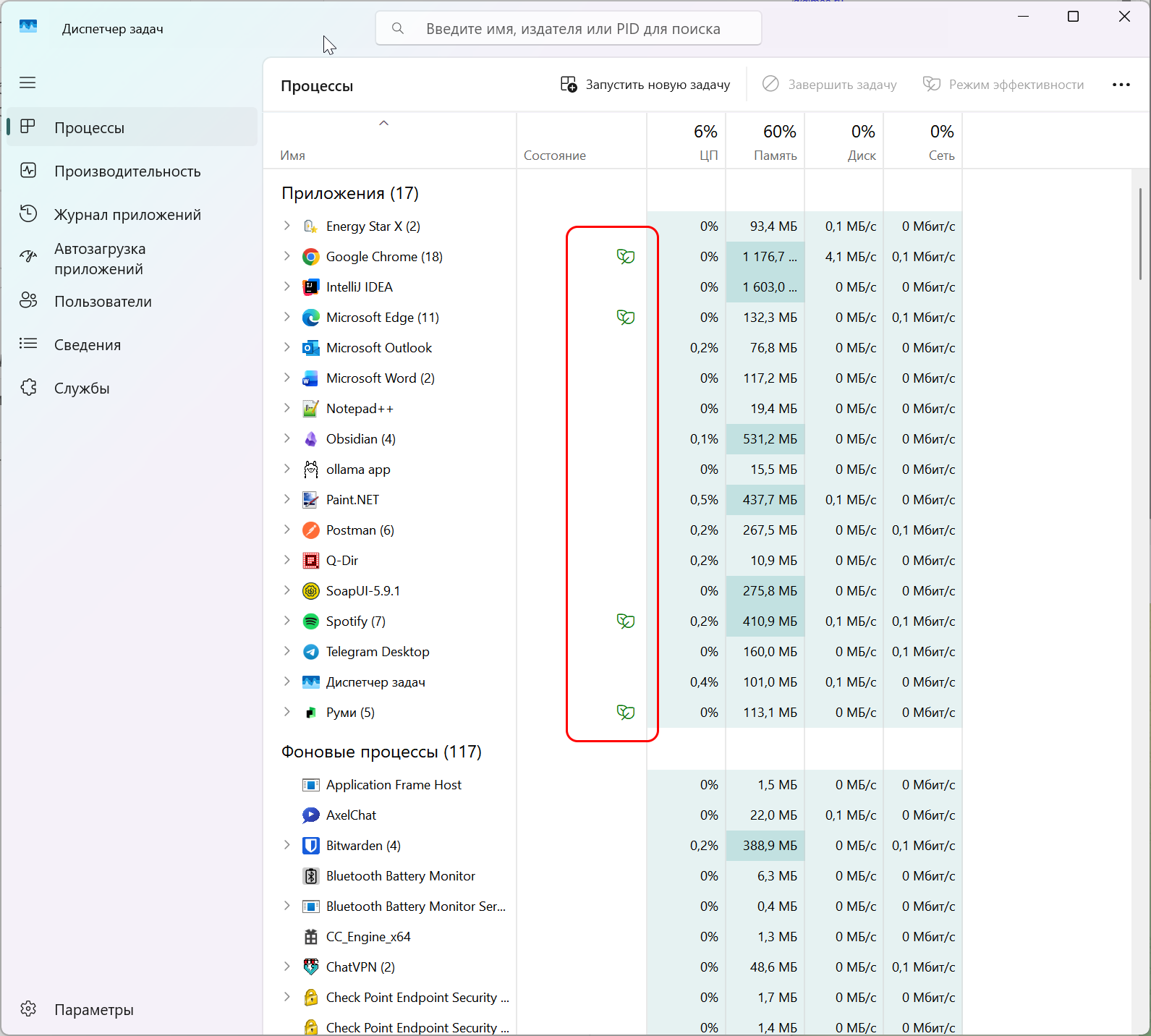
With the Energy Star X utility, you can automatically move unused applications into this mode. All you need to do is run the utility in the background, and it will handle everything for you.
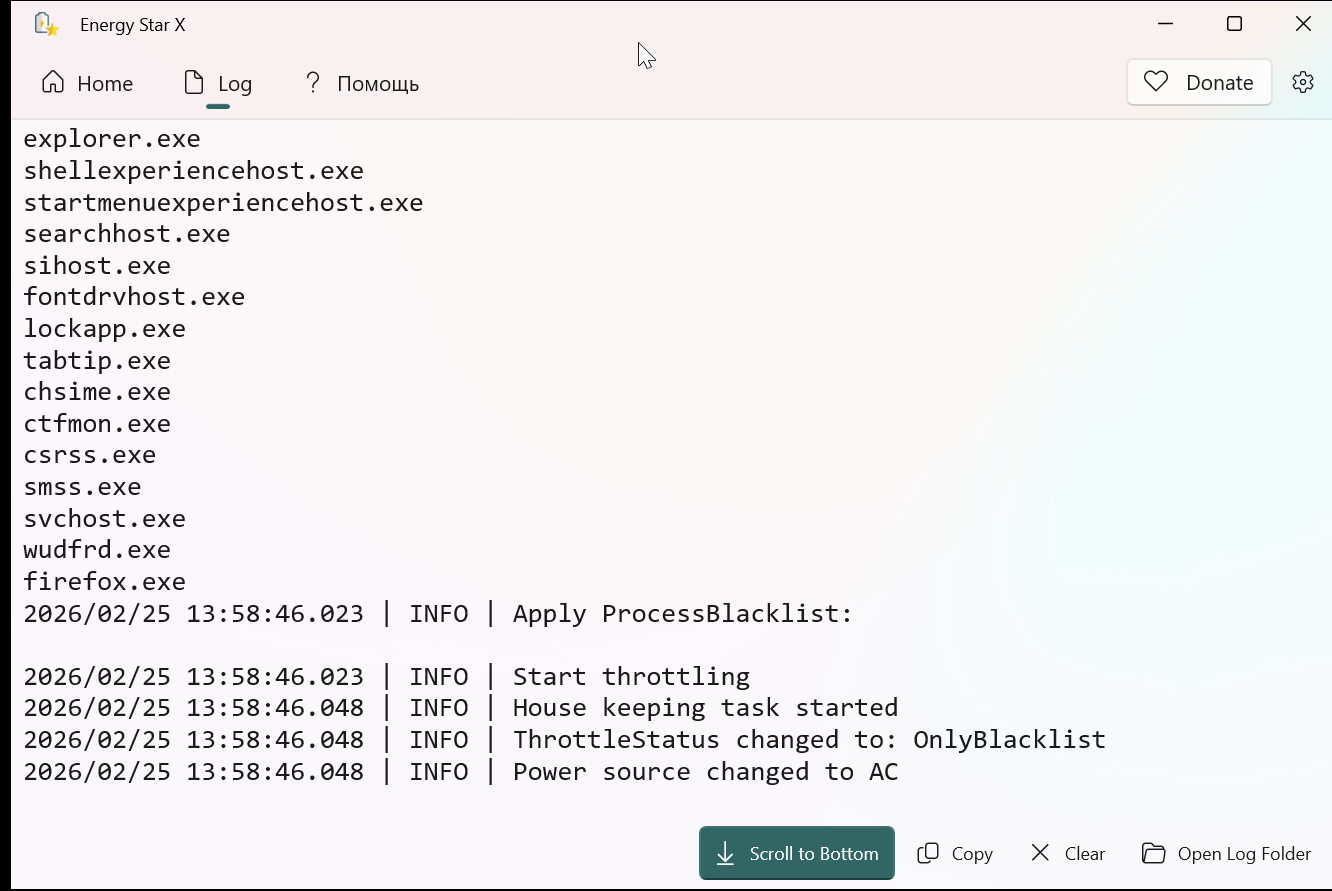
In the settings, you can also enable switching to this mode even when your laptop is connected to a power source. If Energy Star X is running, you will see a corresponding icon in the main window, as well as log entries being generated.