
AI agents, such as Cursor or Claude, usually handle the tasks assigned to them quickly. But sometimes development takes longer than expected, and you don’t want to sit at the computer all the time waiting for it to finish. In such cases, the system can easily go to sleep and block the agent’s operation. You can solve this problem using third-party utilities.
Insomnia for Windows
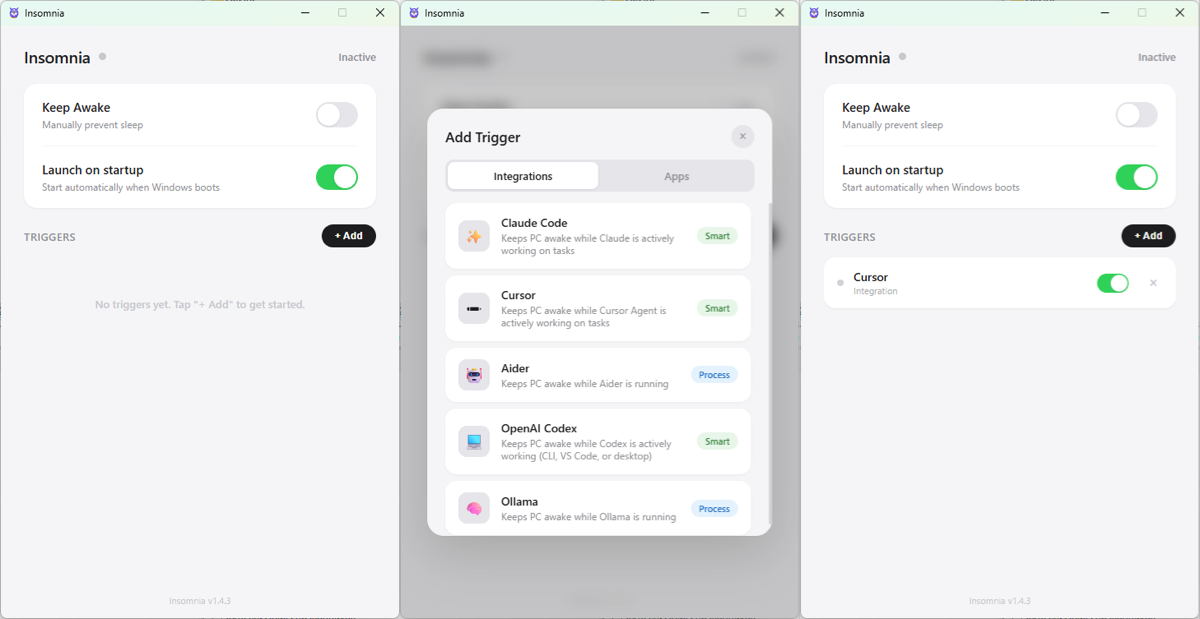
This Windows app supports Claude, Cursor, Aider, OpenAI Codex, and Ollama right out of the box. To activate it, simply select the desired triggers and toggle the “Keep Awake” switch on.
Now, as long as the agent is still running, your PC won’t go to sleep. You can also add any third-party app in the “Apps” section. If that app is running, your computer won’t go to sleep either.
Hold My Lid for macOS
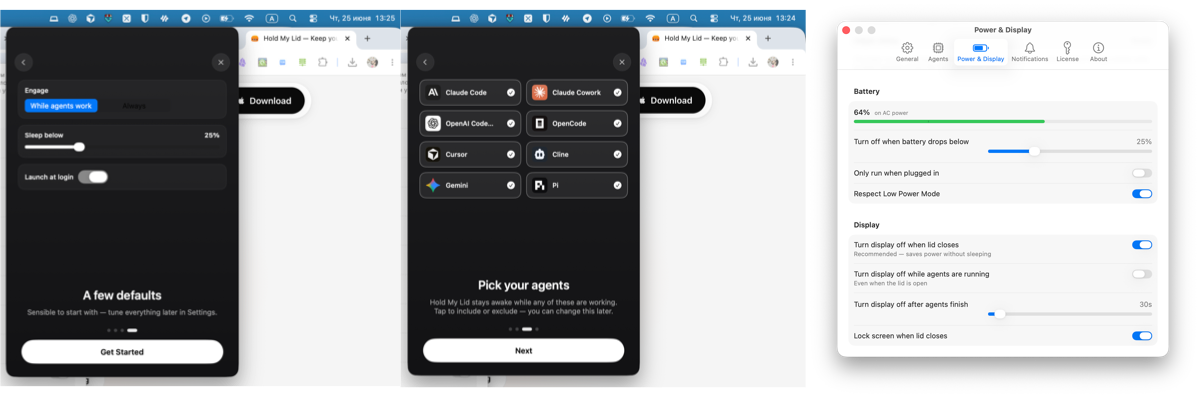
A similar app for macOS, designed more for laptops than for desktops.
When you first launch it, you’ll need to specify the battery charge level at which the system will still go to sleep. In the second step, you’ll need to select which agents must be running to prevent the system from going to sleep.
Once configured, macOS won’t go to sleep if the selected application is still running and the battery isn’t low.
There’s a two-day trial, after which the cost is $9.99.
If you don’t want to spend $10, you can use the command-line utility `awake`. It supports Claude, Codex, Cursor, and OpenCode.