

PearPass is a free password manager with cloudless P2P synchronization. It’s cross-platform, but still rough around the edges and requires a desktop app for syncing.
It feels like the password manager market has already settled, leaving us to choose between KeePass and its alternatives—LastPass, 1Password, or Bitwarden. At worst, there’s browser storage or Apple Keychain. Still, every now and then, new and interesting options appear that are worth a look.
What’s new?
Recently, the developers of Tether (if you know, you know) launched their own password manager called PearPass. Surprisingly, it has nothing to do with crypto, isn’t built on blockchain, and follows a fairly classic approach overall.
Its single major distinction from competitors is that it’s free, thanks to P2P data synchronization between your devices. That means your information is never sent to the cloud.
Apps are also available right away for all major operating systems.
First issues
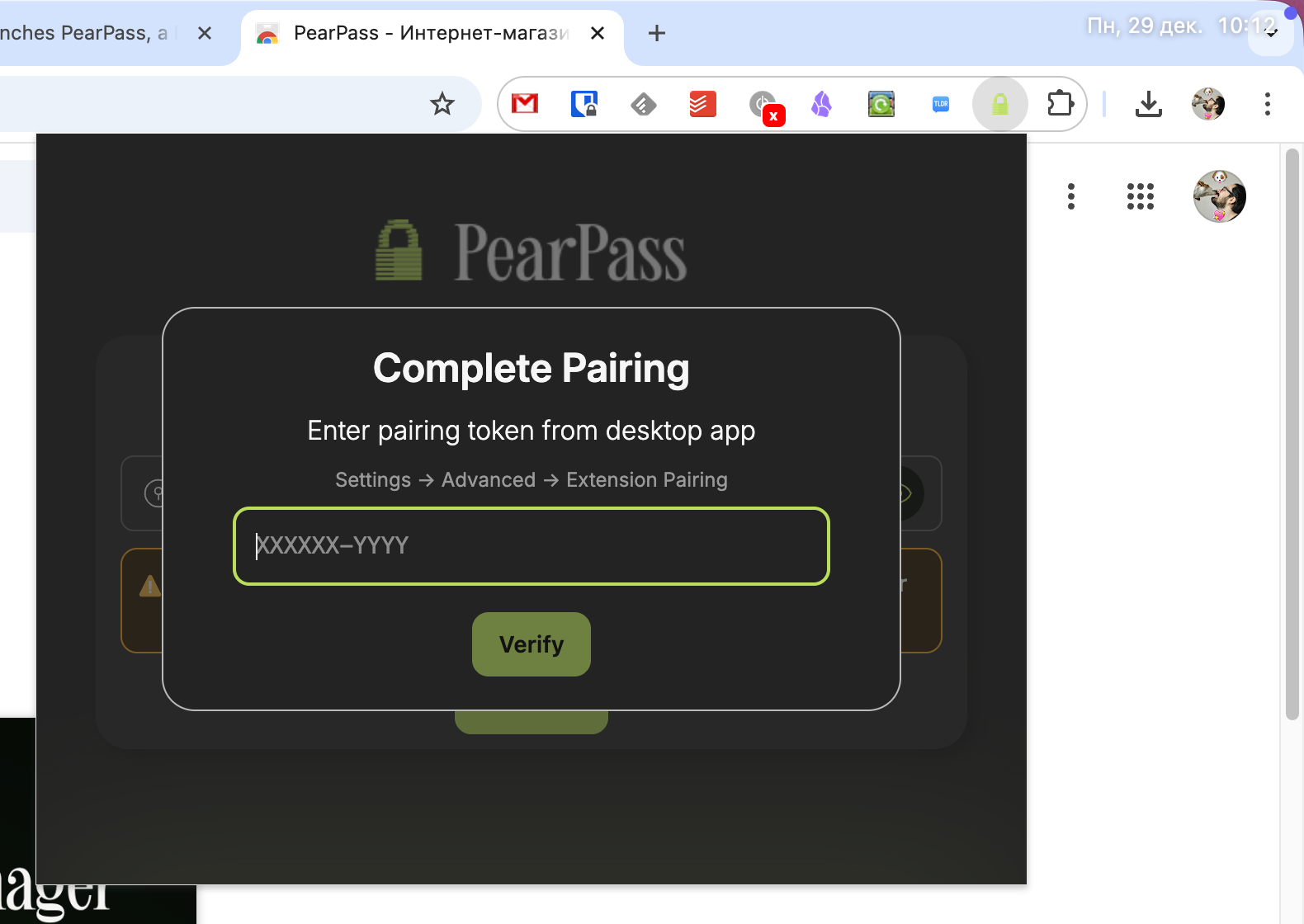
For this review, I started with the macOS version on Apple Silicon. After downloading and launching it, I was greeted by a window like this—and even after several minutes, nothing happened.

On Windows, the situation was the same, even though I ran a full installer there.
The only versions I managed to launch successfully were Android and the Chrome extension, which doesn’t really help much when using a password manager.
Synchronization can only be initiated from the desktop app. As a result, neither the browser extension nor mobile apps can access your data unless there’s a desktop app in between.
Storage setup
If PearPass does work for you, the feature set is identical across versions, so I’ll describe it based on the Android app.
On first launch, you need to set a master password and create your first password vault. You can create multiple vaults later and, for example, separate work data from personal data.
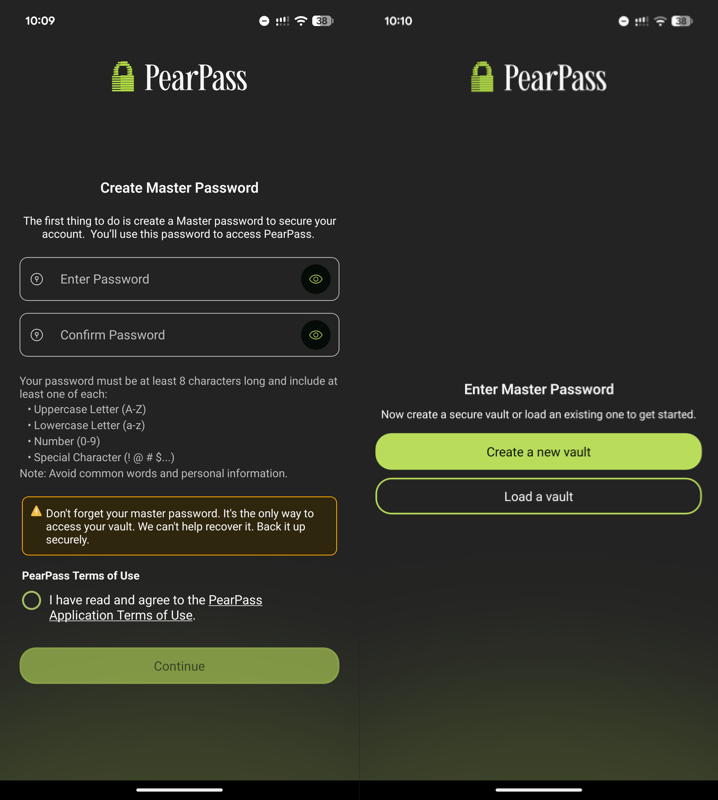
You can also enable biometric authentication and set PearPass as the system password manager to enable autofill across the OS.
The manager itself has a fairly minimalistic design, with the ability to switch between different entry types or search through them.
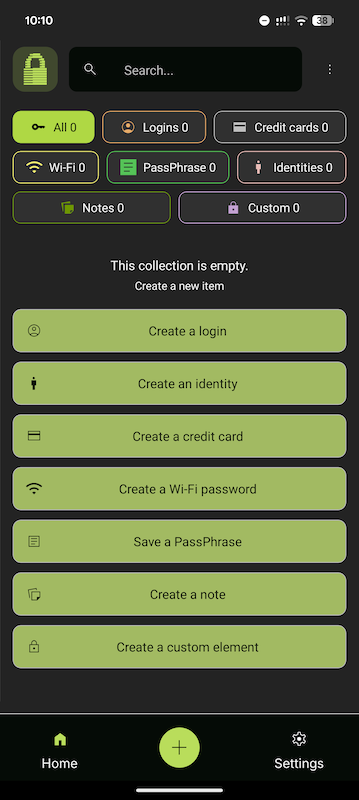
Passwords, notes, and other items can be added to favorites or organized into folders. There are no other organization methods like tags. Personally, I’ve long given up on organizing data and just keep everything together, relying on search.
What data types you can store
The manager allows you to store passwords, app authentication codes, credit card details, Wi-Fi credentials, passport data, notes, and other information.
All data can be exported to .csv or .json formats. Imports are supported from 1Password, Bitwarden, LastPass, NordPass, Proton Pass, as well as from .csv and .json files.
Editors for different data types look mostly the same, aside from category-specific fields. For example, password entries include:
- Name, email
- Password, website address
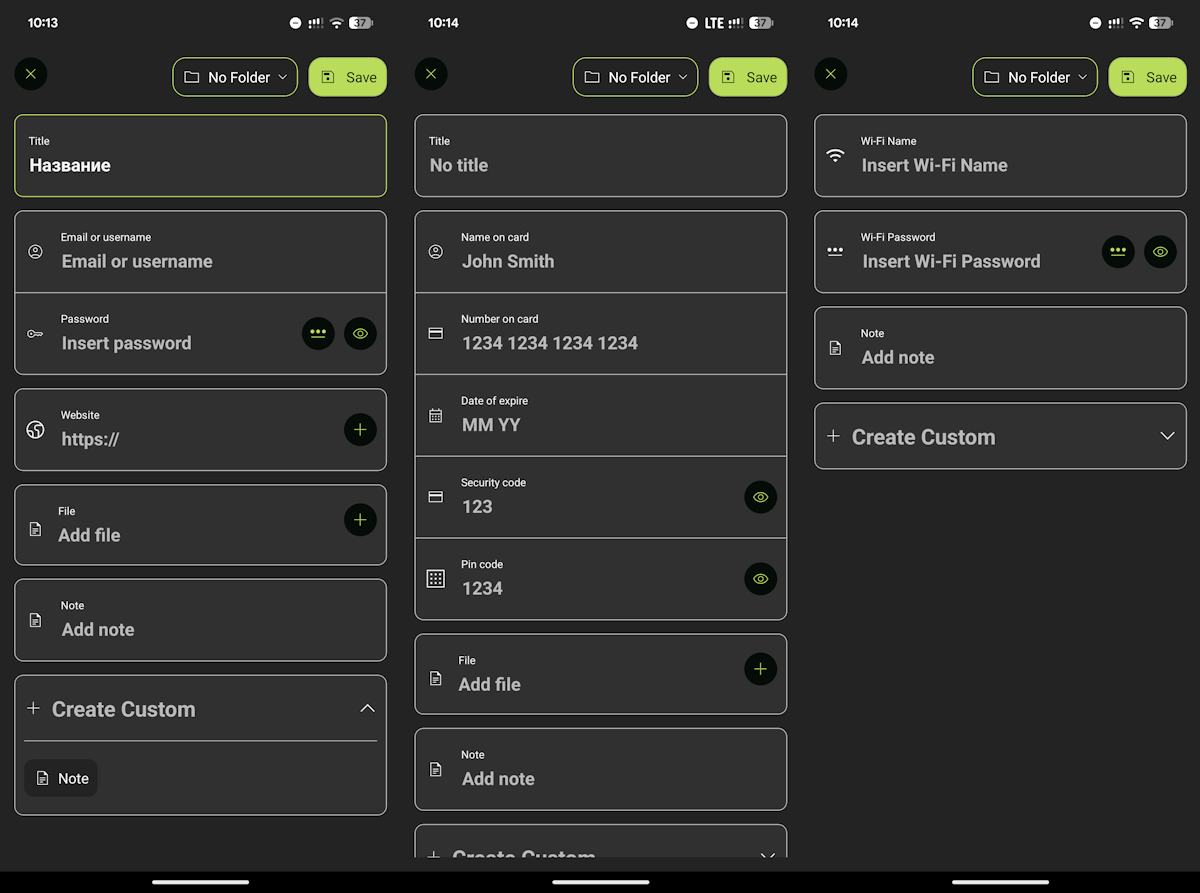
For all other categories, you can add a file, a note, or create a custom field, which is essentially another note.
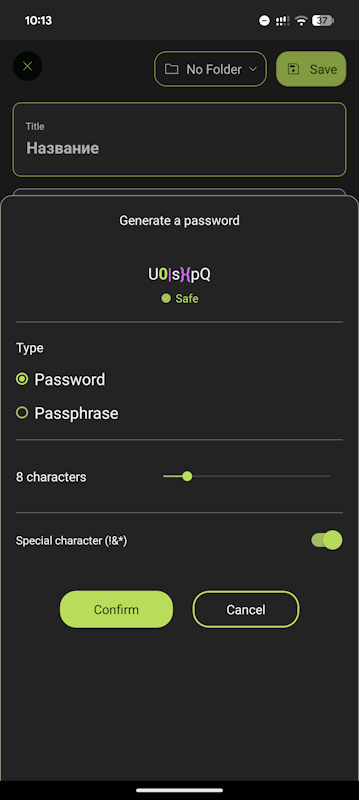
Of course, there’s a built-in password generator with configurable security strength.
Conclusions
I can’t say that PearPass is a non-working piece of code with severely limited functionality. It’s still the first version of the app, and bugs are likely to be fixed over time.
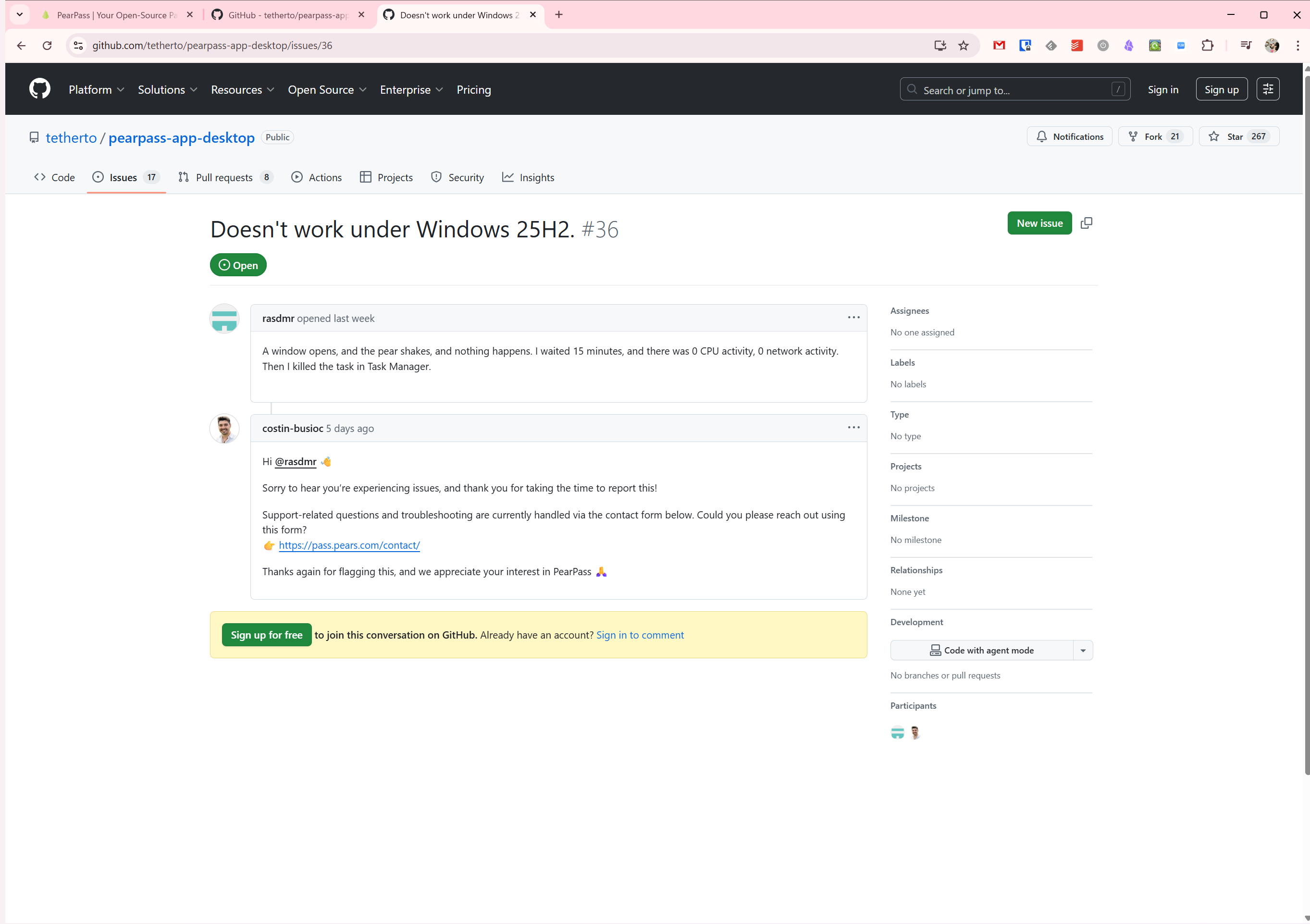
That said, my outlook isn’t particularly optimistic. All issues on GitHub are redirected to support contacts, which clearly won’t speed up their resolution.
If we imagine everything working as intended, PearPass seems like a fairly promising solution—especially when compared to other free alternatives.
As a password manager, it already lets you store any type of data and automatically fill it across devices. The only drawback, even for future versions, is the requirement to install a desktop app to set up synchronization between all devices.