
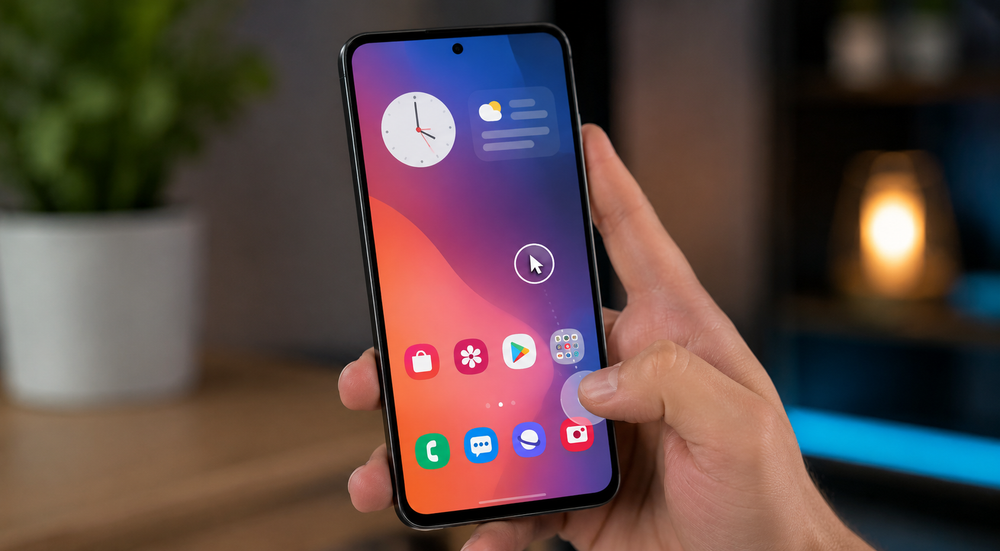
Modern smartphones have large screens, which is great for consuming content. But reaching the top-left corner is very inconvenient. Android has built-in tools to solve this problem, but there are also some cool third-party solutions.
Quick Cursor: One-Hand Aid adds a virtual cursor to help you control your smartphone with one hand.
To activate the cursor, swipe your finger across the trigger zone, which is located in the bottom-right corner by default. After that, you can use the cursor to interact with any elements on the screen, just like a mouse.
In the free version, you can’t access any settings other than changing the trigger zone. In the paid version, you can customize the cursor’s appearance and use the smartphone’s edge squeeze feature.