
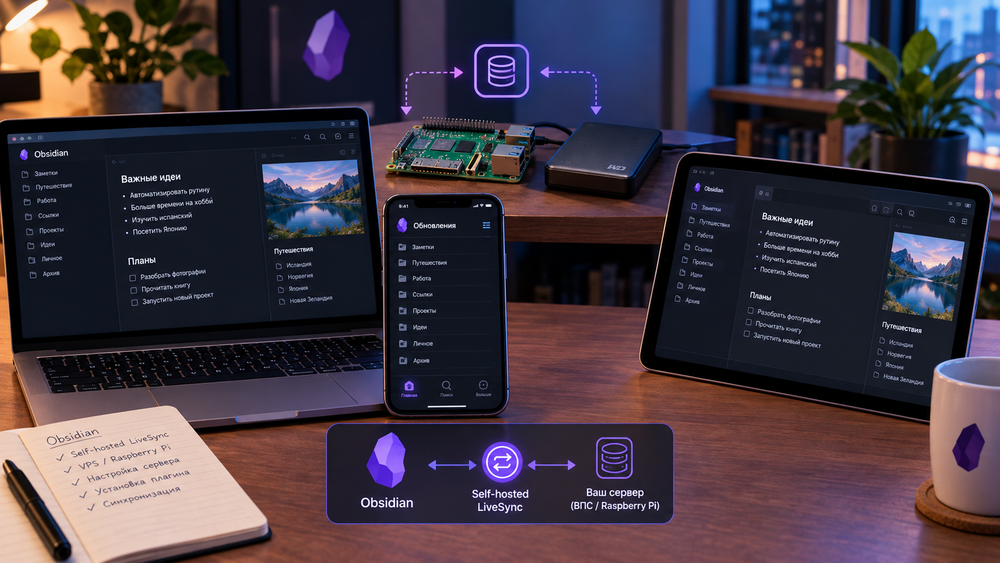
There are many ways to sync your Obsidian database across devices. They all vary in terms of setup complexity and whether they require installing additional utilities. There’s also a built-in sync feature that simply requires a payment. But you can set it up for free, too.
To do this, you’ll need to install and configure the Self-hosted LiveSync plugin, which will let you use Obsidian’s built-in synchronization features for free.
I should warn you, though—unlike most plugins, setting up Self-hosted LiveSync isn’t easy. Before installing the plugin itself, you’ll need to set up your own sync server. You can use a VPS for this or, as I did, a Raspberry Pi and an external hard drive.
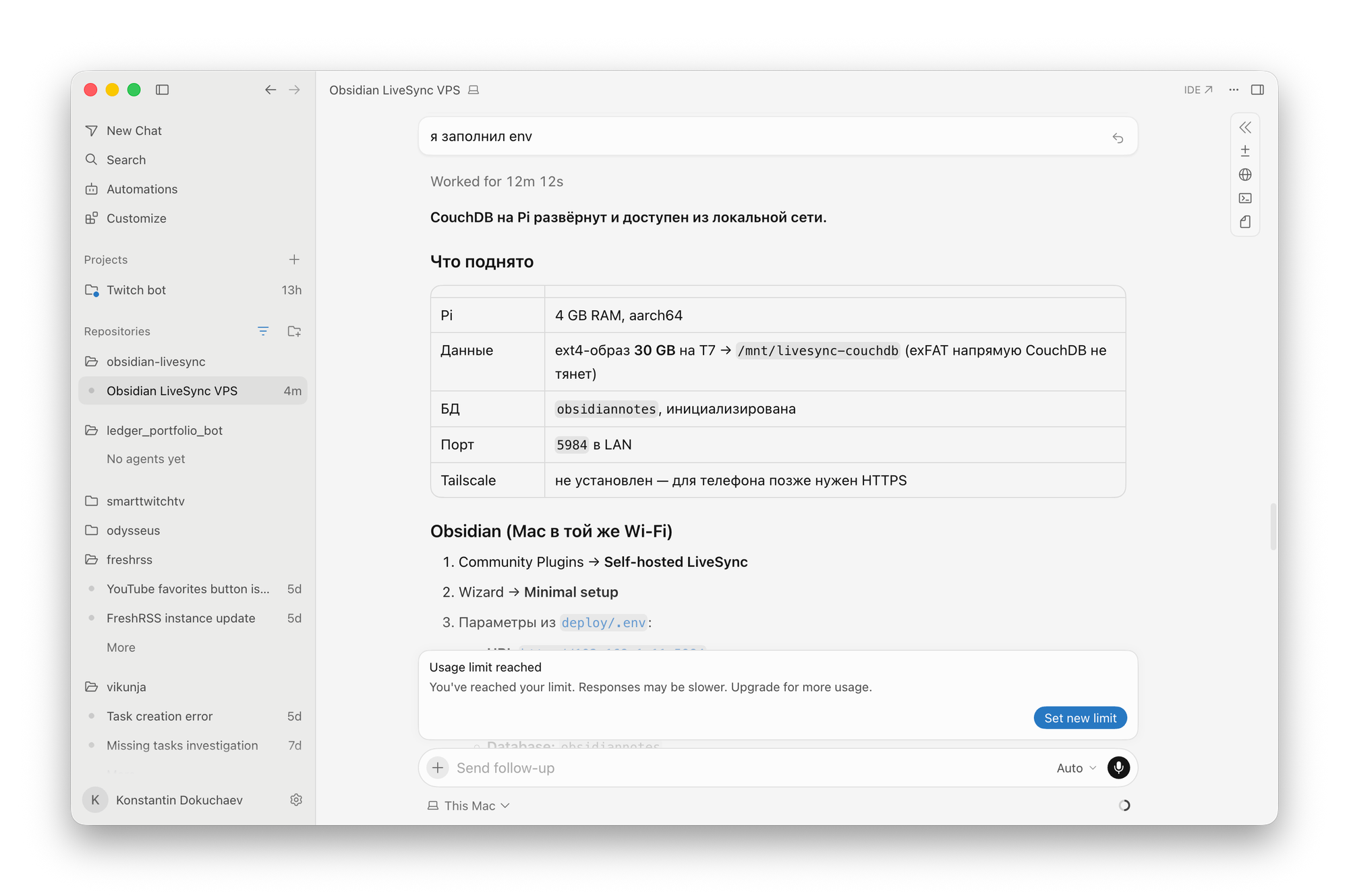
The setup process is described in the project repository, and you can do everything yourself or use tools like Cursor to help you.
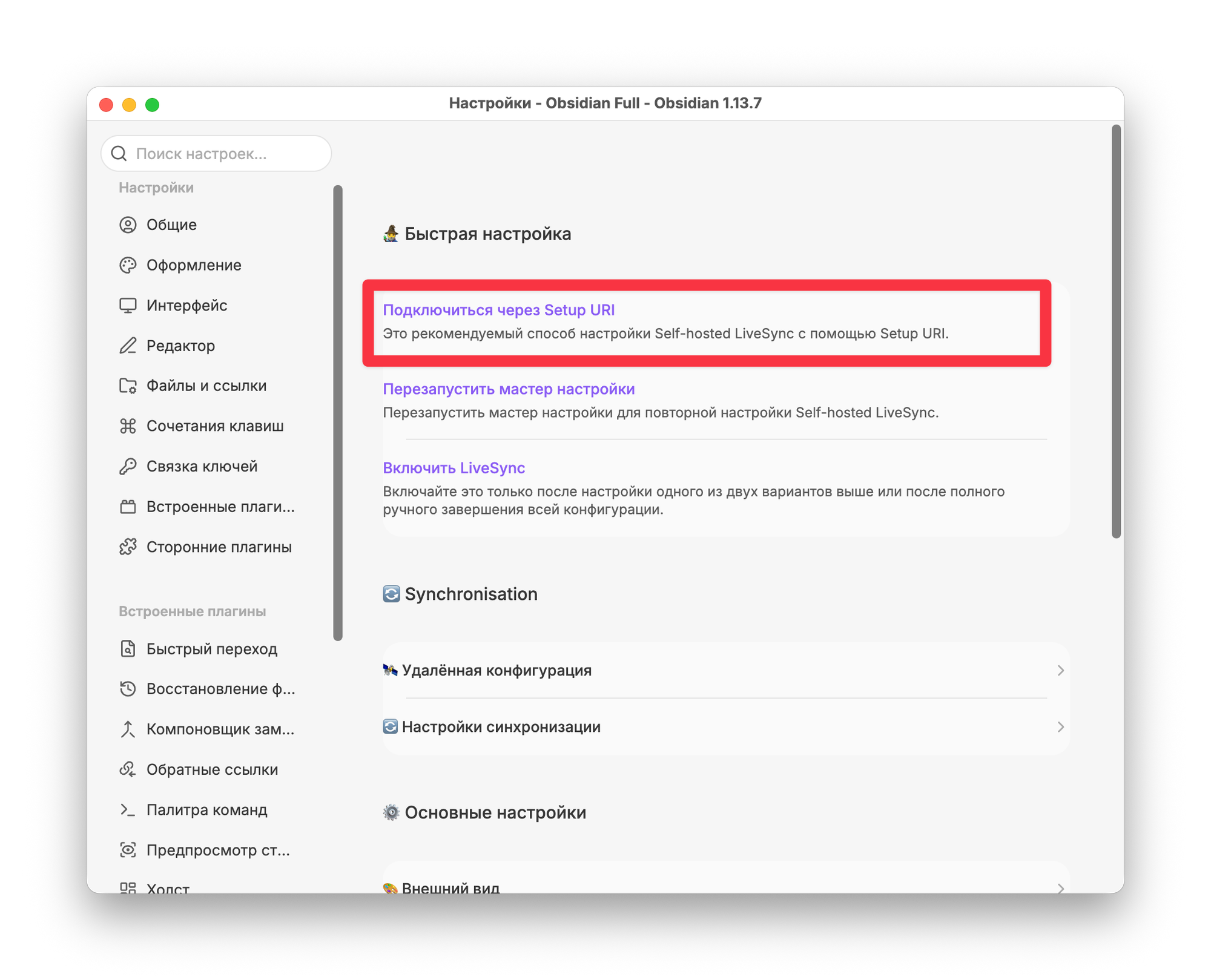
Next, you can move on to installing and configuring the plugin itself. If this is your first setup, you’ll need to specify the access credentials for your LiveSync instance. To do this, select “Connect via Setup URI.”
Next, you’ll need to enter the Setup URI and a passphrase to access your database.
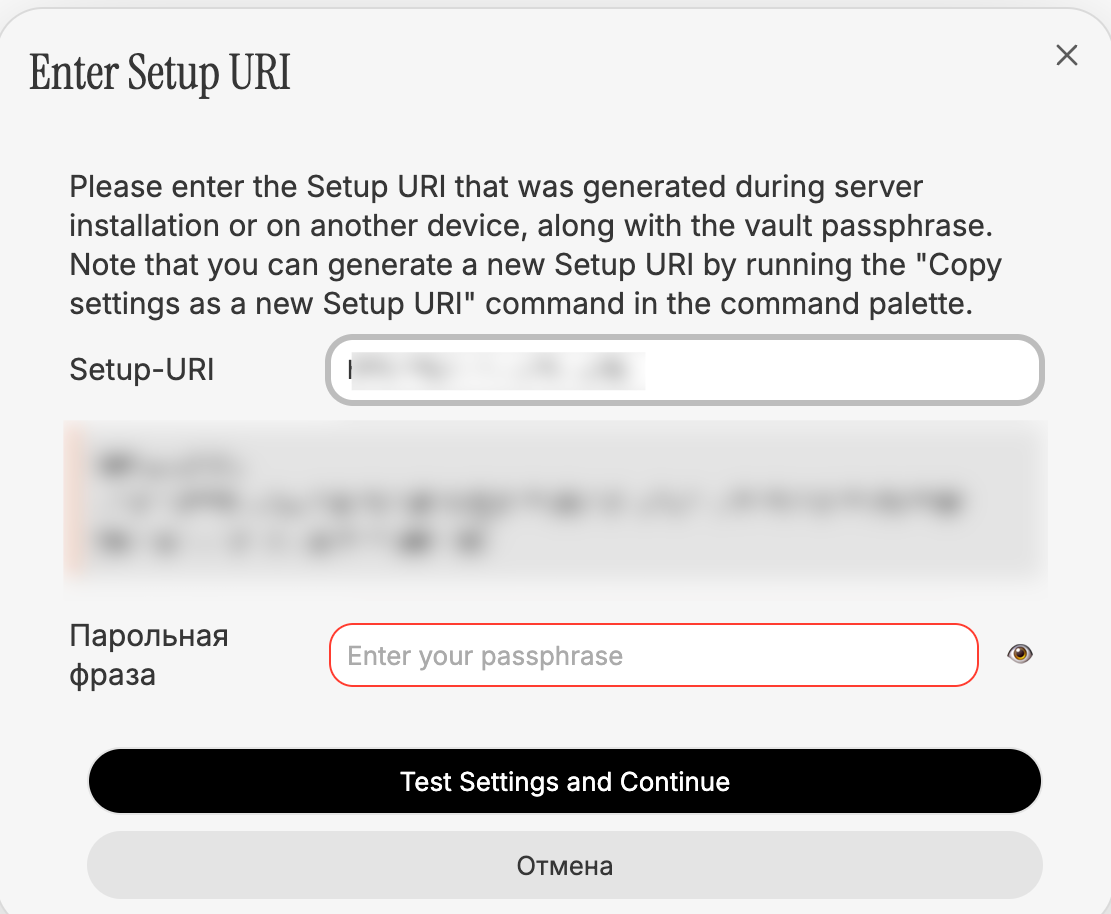
You’ll need this same information on other devices, including mobile devices.
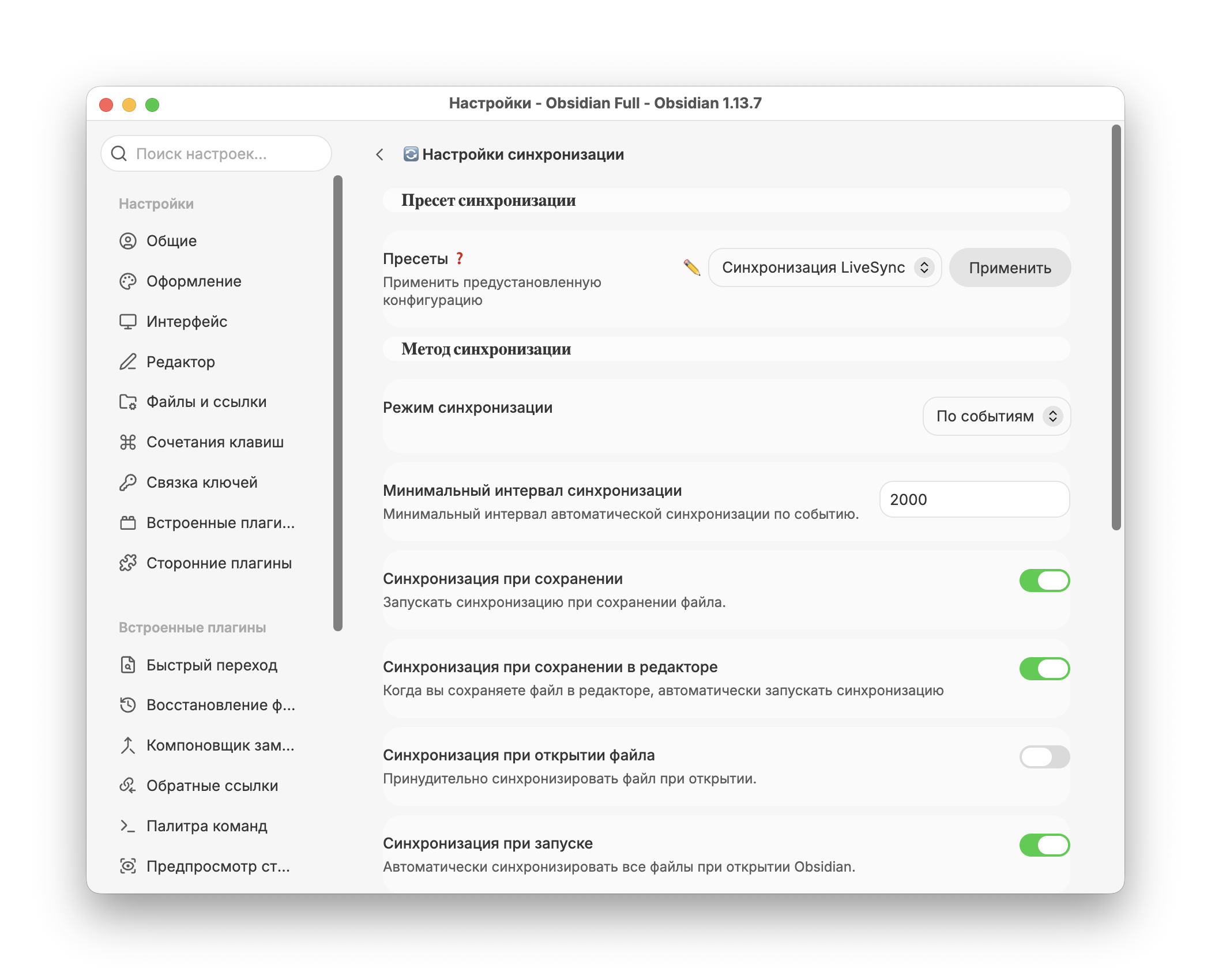
You’ll then need to agree to the terms, double-check your sync settings, and confirm that you’ve created a backup of your database in case of unforeseen circumstances.
For the first synchronization, select “Fully overwrite all data on the server.” To configure other devices, select “My server is already configured.”
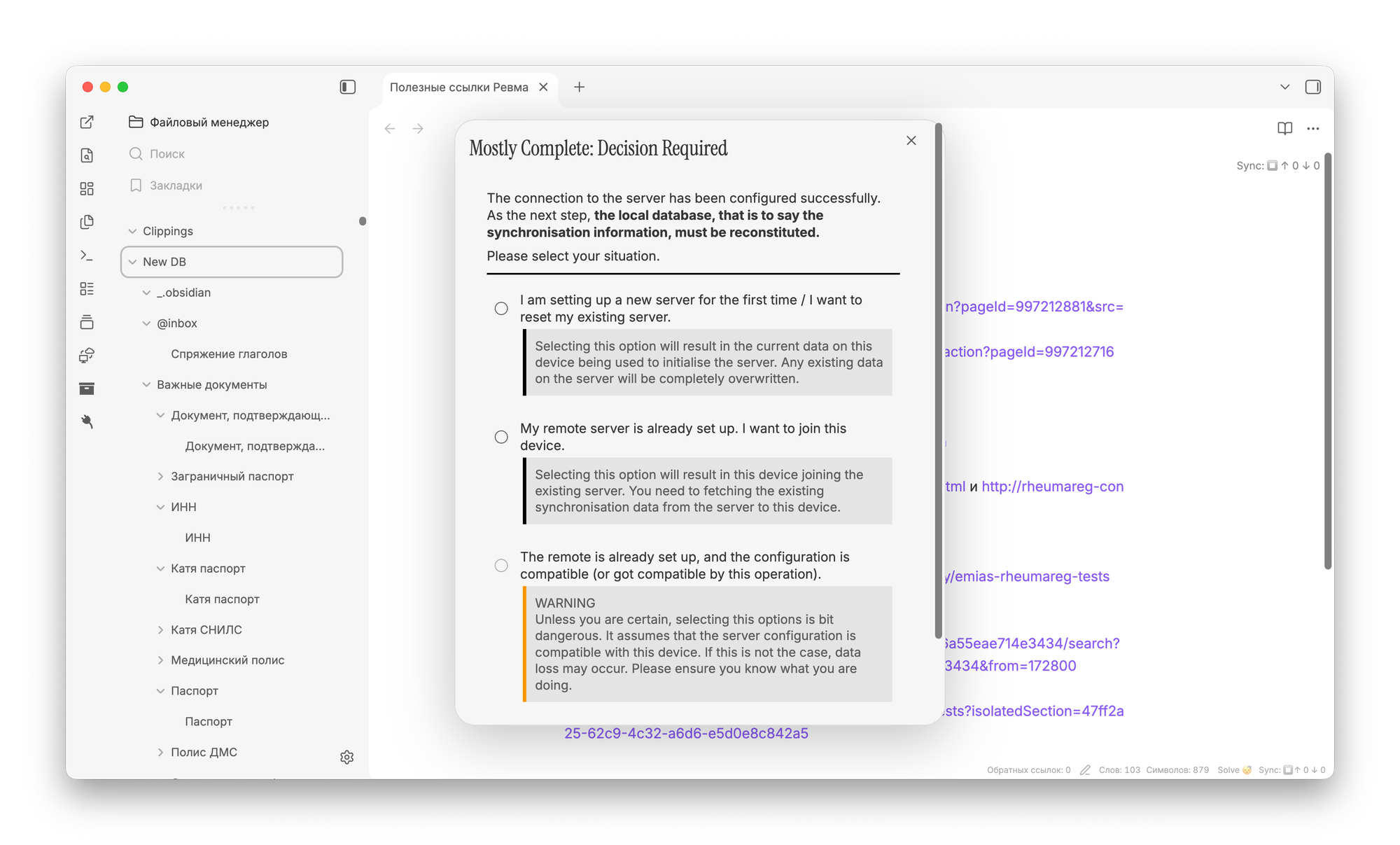
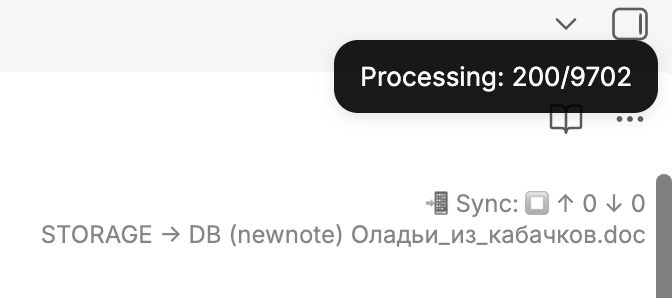
If everything is configured correctly, Self-hosted LiveSync will start the initial database sync to the specified address. The time it takes to create the first database dump depends directly on the size of your knowledge base. It took me about 20 minutes to create a 4 GB database backup.
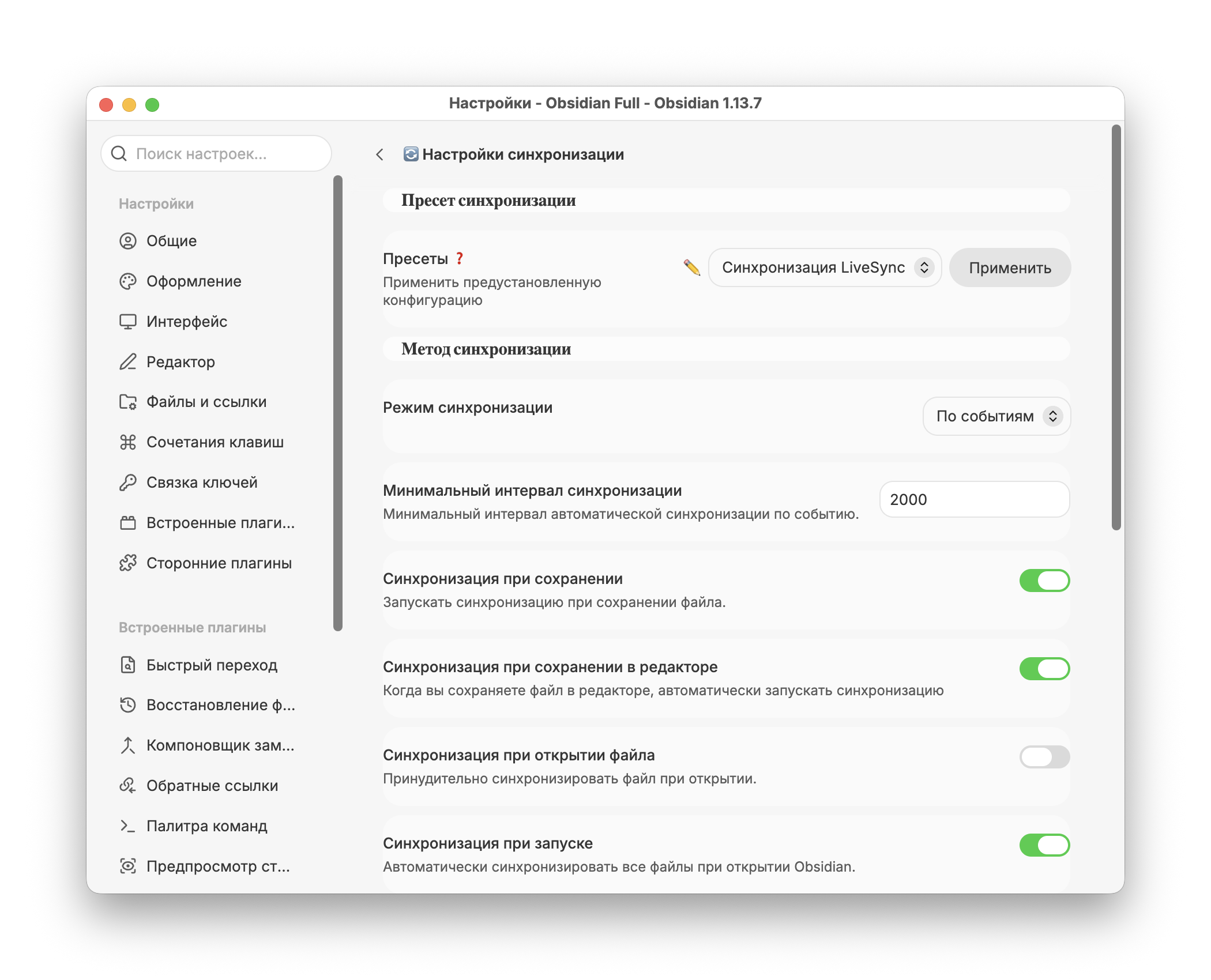
If you wish, you can go to the plugin’s settings and configure triggers and other synchronization parameters. For example, you can set synchronization to occur when Obsidian opens or when a note is saved.
At every step of the plugin setup—even after the first sync—I recommend proceeding with great caution. This is especially true if you don’t have a backup of your knowledge base.
Self-hosted LiveSync isn’t very user-friendly at first, and without the necessary experience, it’s easy to configure something incorrectly and lose all your notes. But once everything is set up and you’ve figured out the settings, it all works without any further action on your part.