
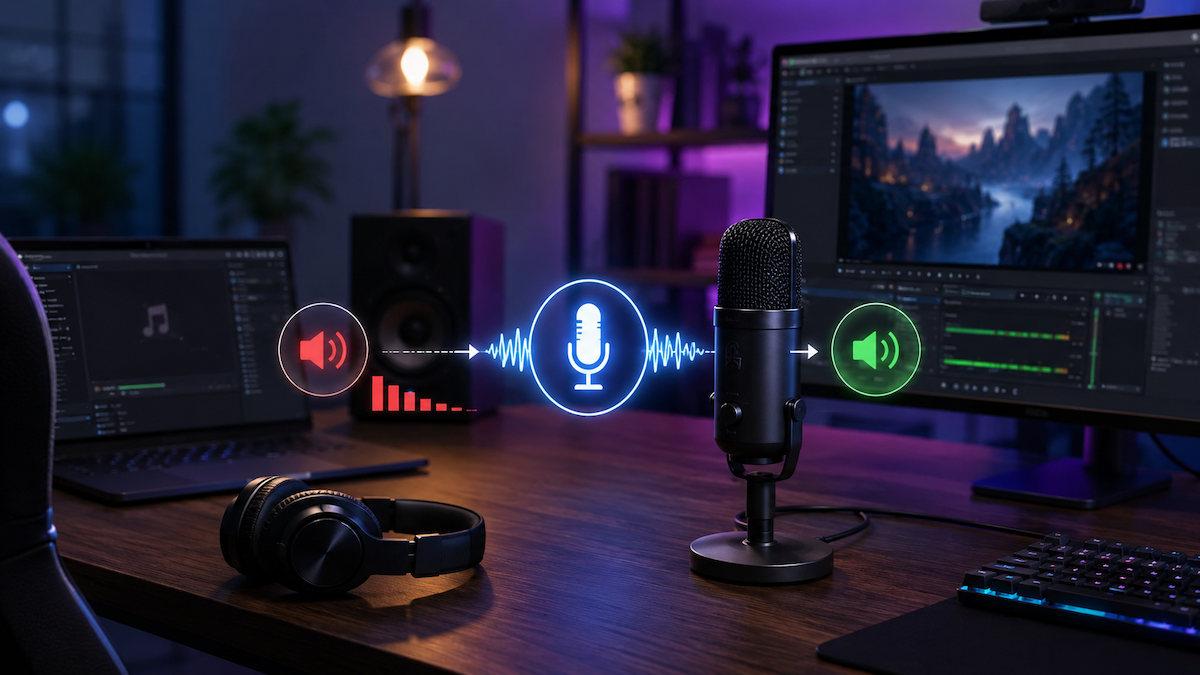
Whenever it’s time for a conference call, I have to pause my music every time so it doesn’t get in the way. Or, for example, when I’m streaming, I want to mute system sounds, but then I have to change all the settings. It gets annoying having to do this manually every time.
With the Auto Ducking app, you can automatically mute background sounds when you plug in your microphone.
To do this, set the basic audio settings in the “Ducking Rules” section. You can create multiple settings and switch between them as needed.
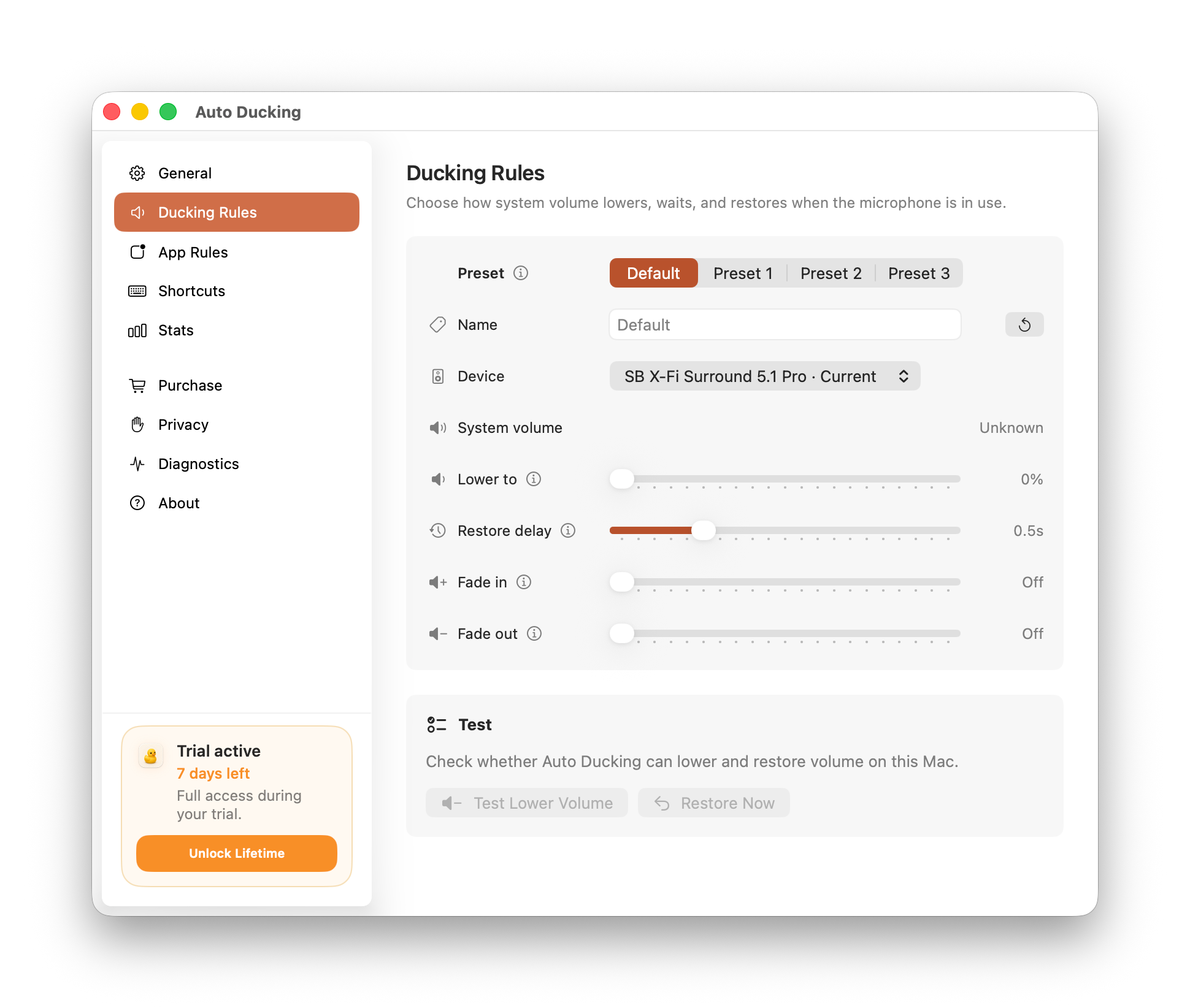
Here, you specify the device whose volume you want to lower. And for the volume level itself, there are several options:
- The level to which the sound should be reduced;
- The rate of attenuation and recovery for a smooth change in volume;
- Delay for the volume to return to its previous level.
In the App Rules section, you can specify which apps should have their volume adjusted and which should not.
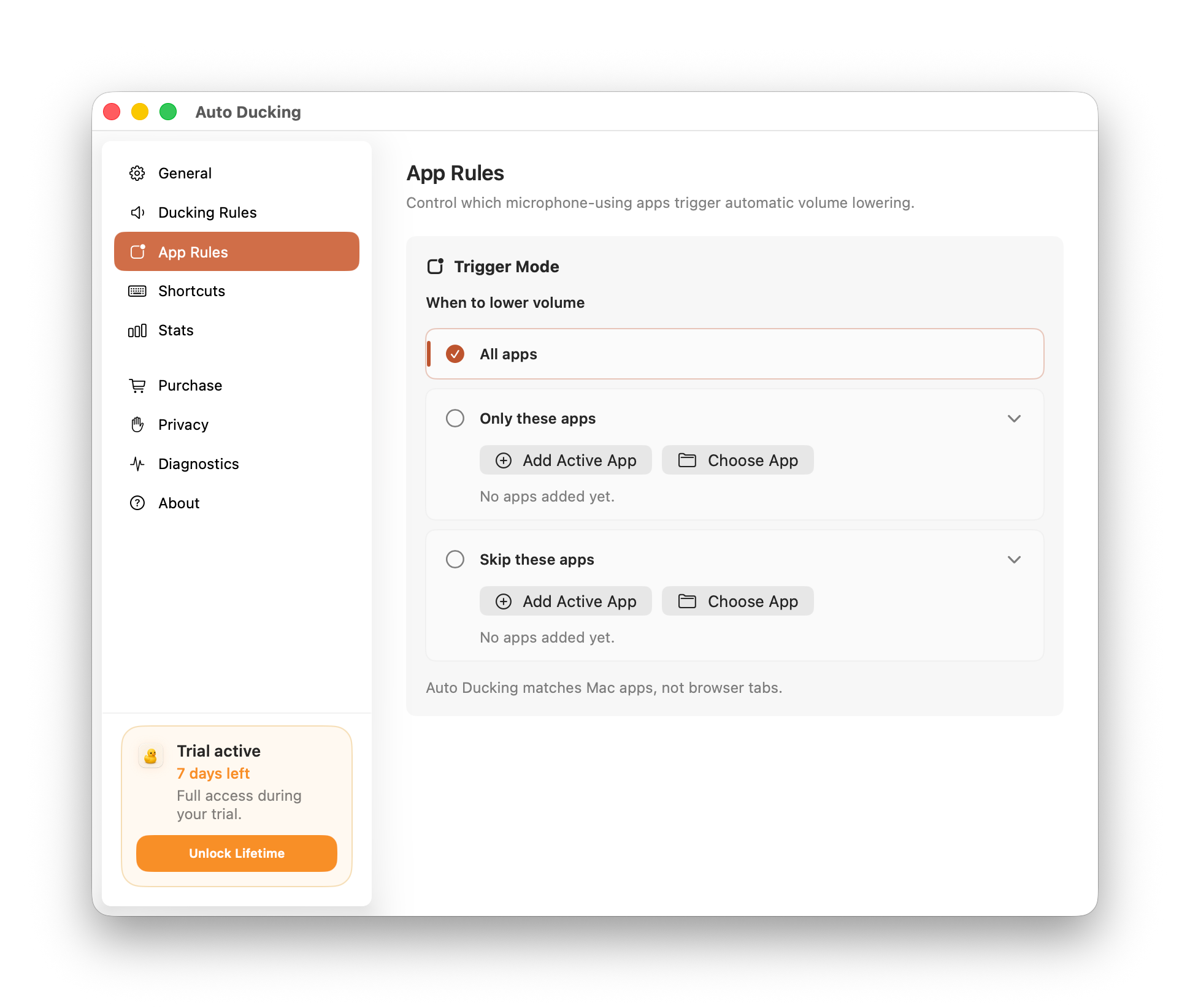
By default, the volume changes when the microphone is active in any app. However, you can include or exclude any apps.
Cost
You can try Auto Ducking for free for one week. After that, the cost is $9.99.