
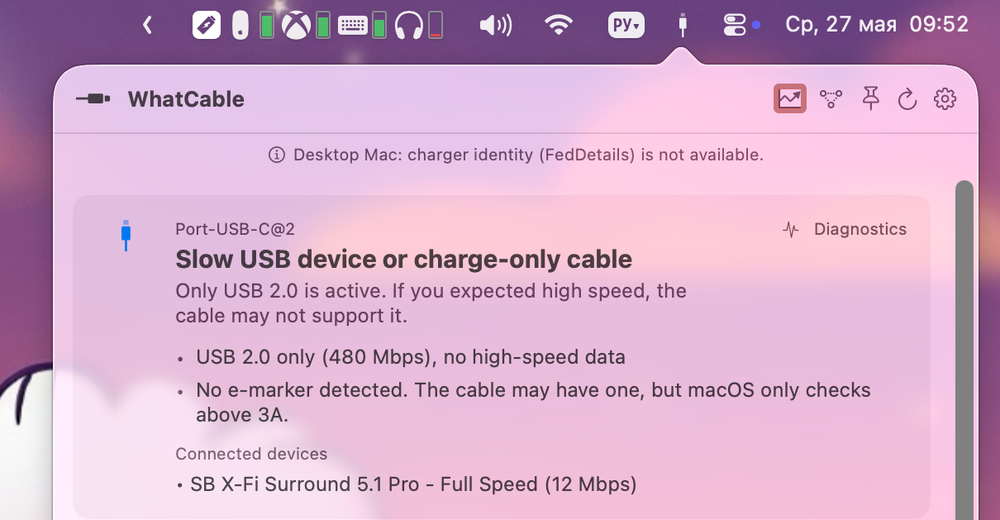
Operating systems generally provide very little information about the technical capabilities of connected ports and cables. Even USB-C cable manufacturers often hide useful details from users. Fortunately, there are utilities that can reveal the actual specifications of a connection.
WhatCable presents information such as cable data transfer speeds, charging limitations, e-marker details, and connected devices in a clear and accessible way. This eliminates the guesswork when trying to understand why a device is charging slowly or why a cable cannot drive an external display.
The app requires no configuration. Simply click its icon in the menu bar to instantly view information about available USB-C ports and any connected cables.
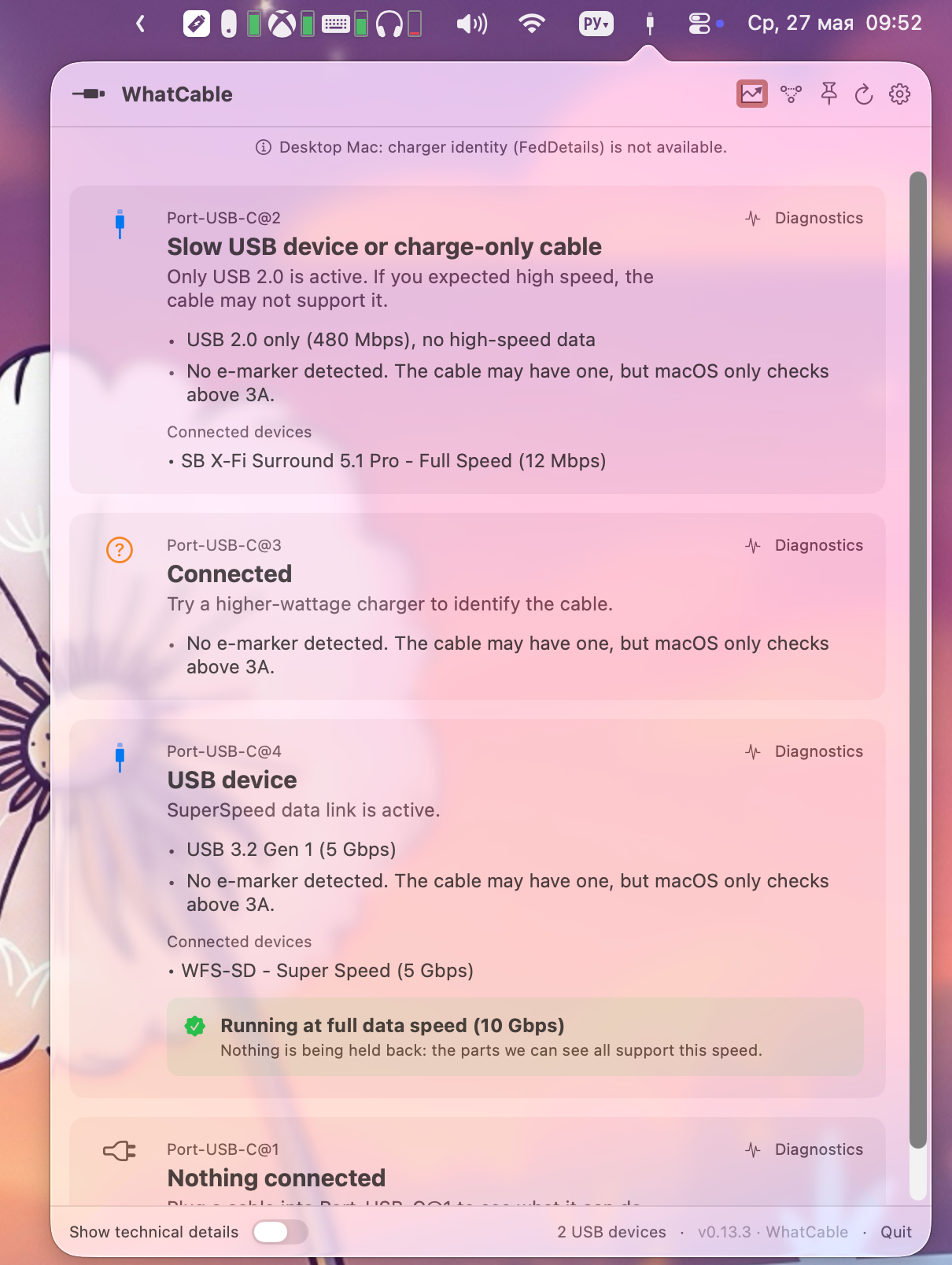
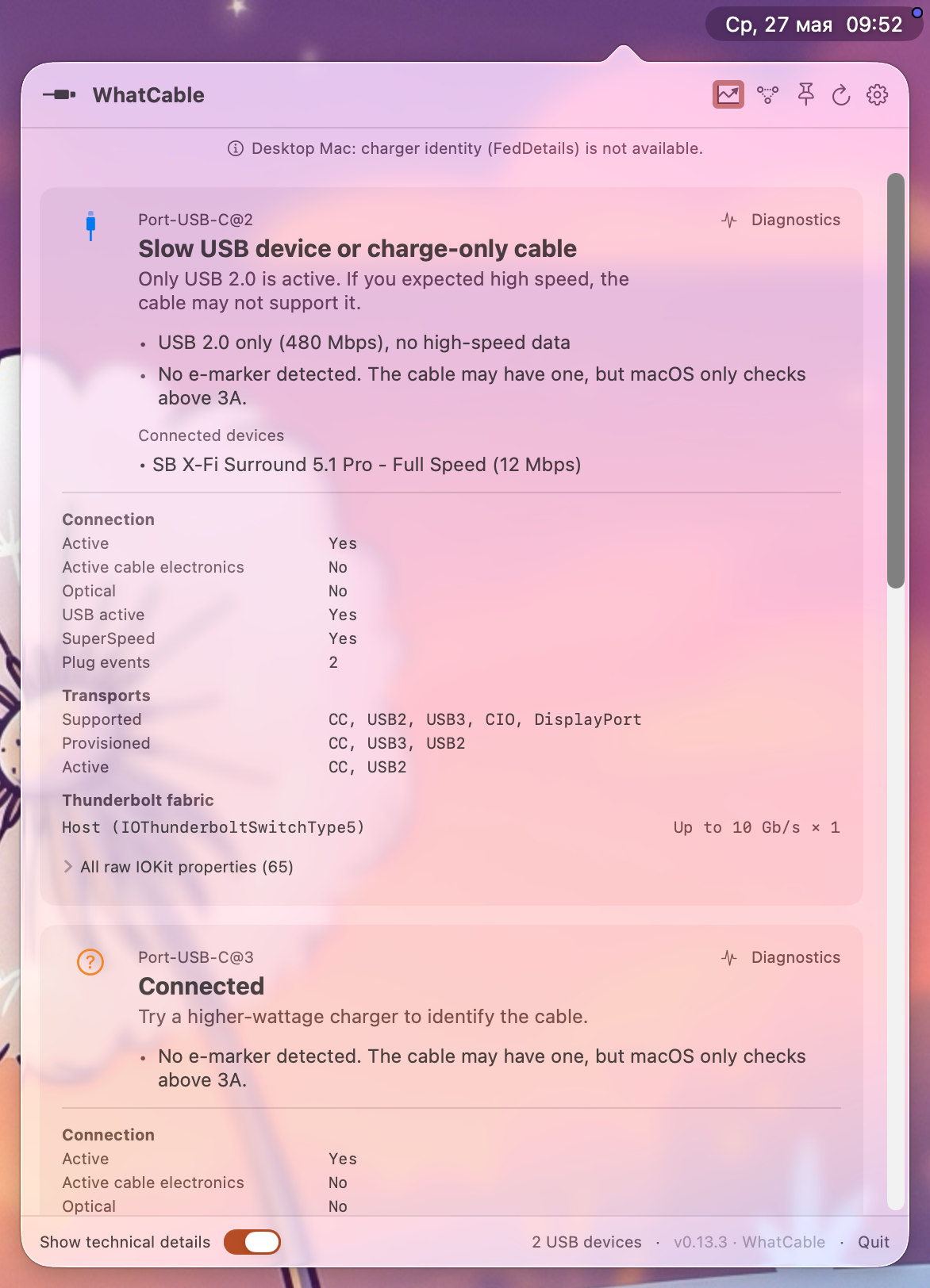
By default, WhatCable displays the most essential details, including data transfer speed, e-marker presence, and information about connected devices.
You can switch to a detailed view to access complete information about supported connection types. A developer mode is also available for advanced users.
Pricing
WhatCable is available for free if the functionality described above is sufficient for your needs. The paid version provides access to additional diagnostic information.
The paid version costs £9.99.