
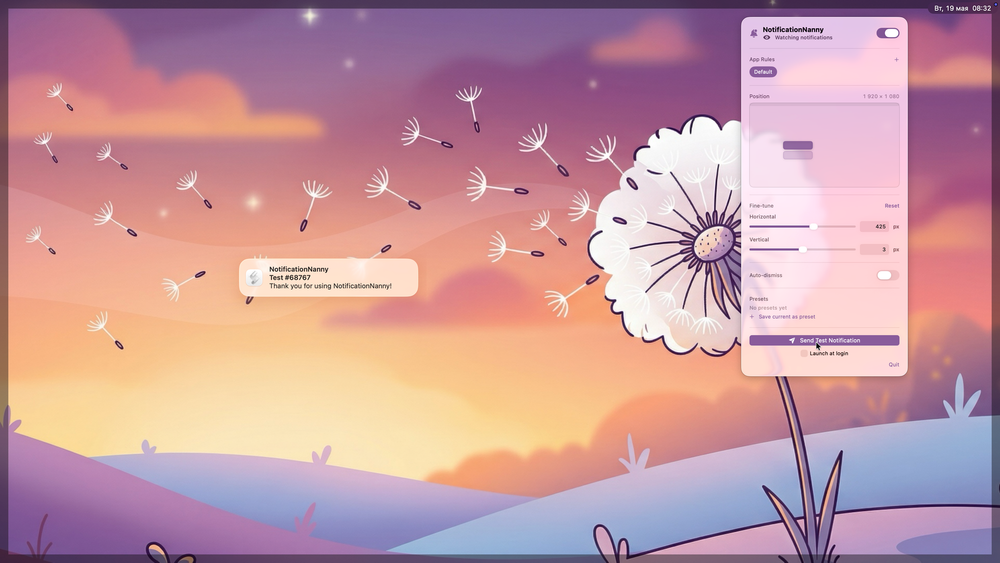
By default, macOS can place system and app notifications in one of four corners. Some applications allow notifications to appear anywhere on the screen. But what if you want to go further and specify the exact location of a notification for a particular app?
You can do that with the NotificationNanny utility, which is designed precisely for this purpose.
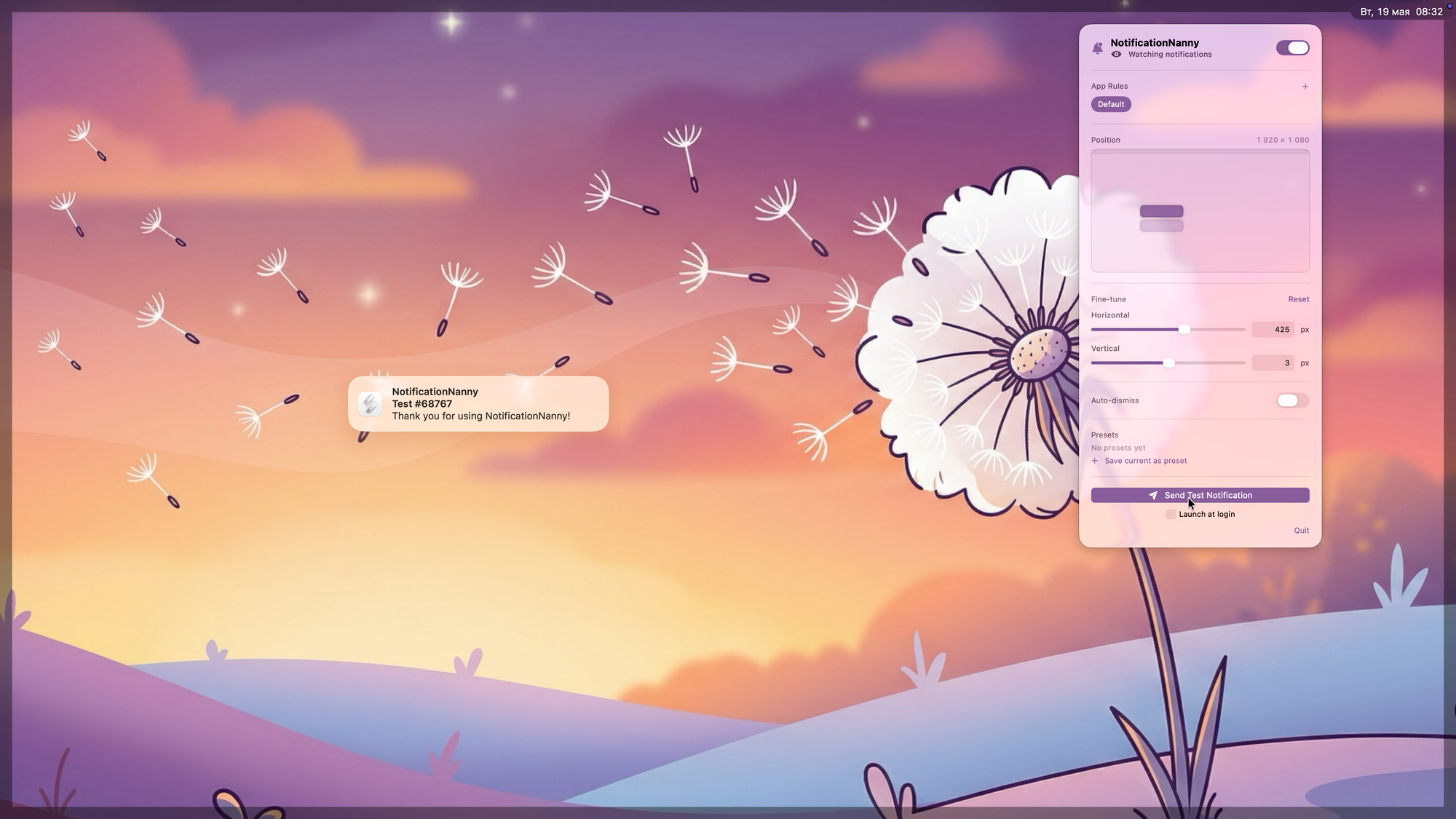
To set the position for all notifications, simply move the preview in the app’s settings. You can create multiple presets and switch between them as needed.
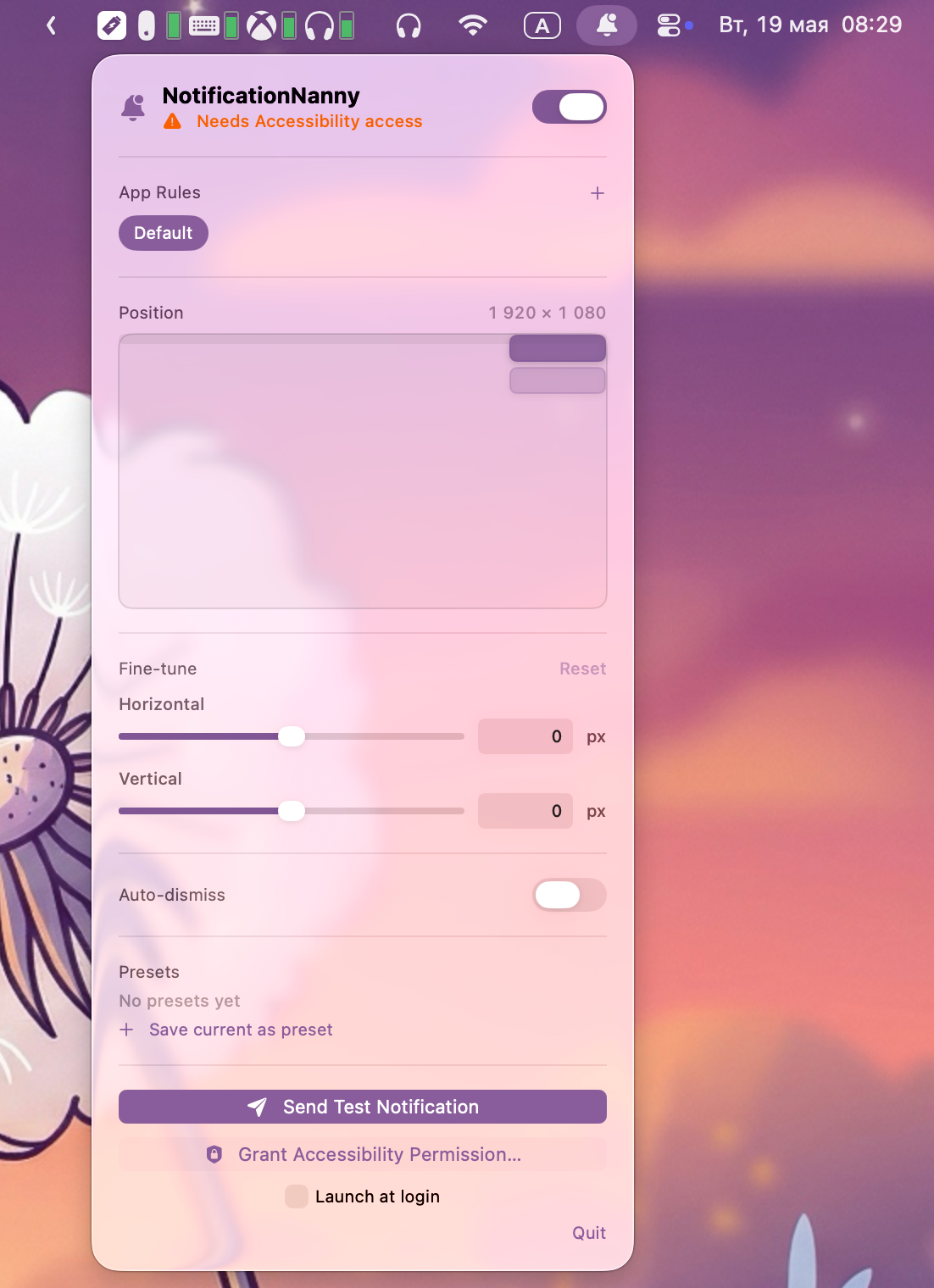
Click the “+” button in App Rules to define a notification location for any single application. Create a rule and then wait for the app to send a notification. When NotificationNanny catches it, you can then adjust its screen position to whatever you like.